
Appearance
Audit Trail Report
Where to find it: Reports button → NeoDash → "Audit Trail Report" in the Report navigation panel.
Purpose
Browse the audit-trail history recorded in the OpenStudyBuilder graph database — who changed what, when, and why — across library elements and study definitions.
Concept & definitions
- Library Audit Trail — history of changes across all library elements.
- Study Audit Trail — history of changes across all study definitions.
- Reason for change — captured per change for library elements (GCP compliant); for studies it is captured at study lock and browsed under study versioning.
When to use
Use when you need a cross-cutting history of changes filtered by user or date range. Do not use it to inspect the history of one specific component — the in-app History pages give a better focused view.
Report tabs
The report is organised in different tabs, each supporting a different purpose. To open the report, see Open NeoDash on the section landing page.
| Tab | Use it to… |
|---|---|
| ReadMe | Get oriented — what the audit trail records, the filter parameters, and the tables shown. Start here. |
| Library Audit Trail | Browse the history of changes across all library elements; filter by user and/or date range, then drill into one action. |
| Study Audit Trail by Date | Browse changes to a study's definition within a date range; pick a study, then drill into one action. |
| Study Audit Trail by Version | Browse changes to a study's definition between two study versions; pick a study and a min/max version, then drill into one action. |
ReadMe
Purpose: Orients you to what the audit trail records, the filter parameters available, and the tables each section produces.
When to use: Open this tab first, before browsing the Library or Study Audit Trail tabs.
Show Quick Guide
- Open the ReadMe tab to orient yourself before browsing.
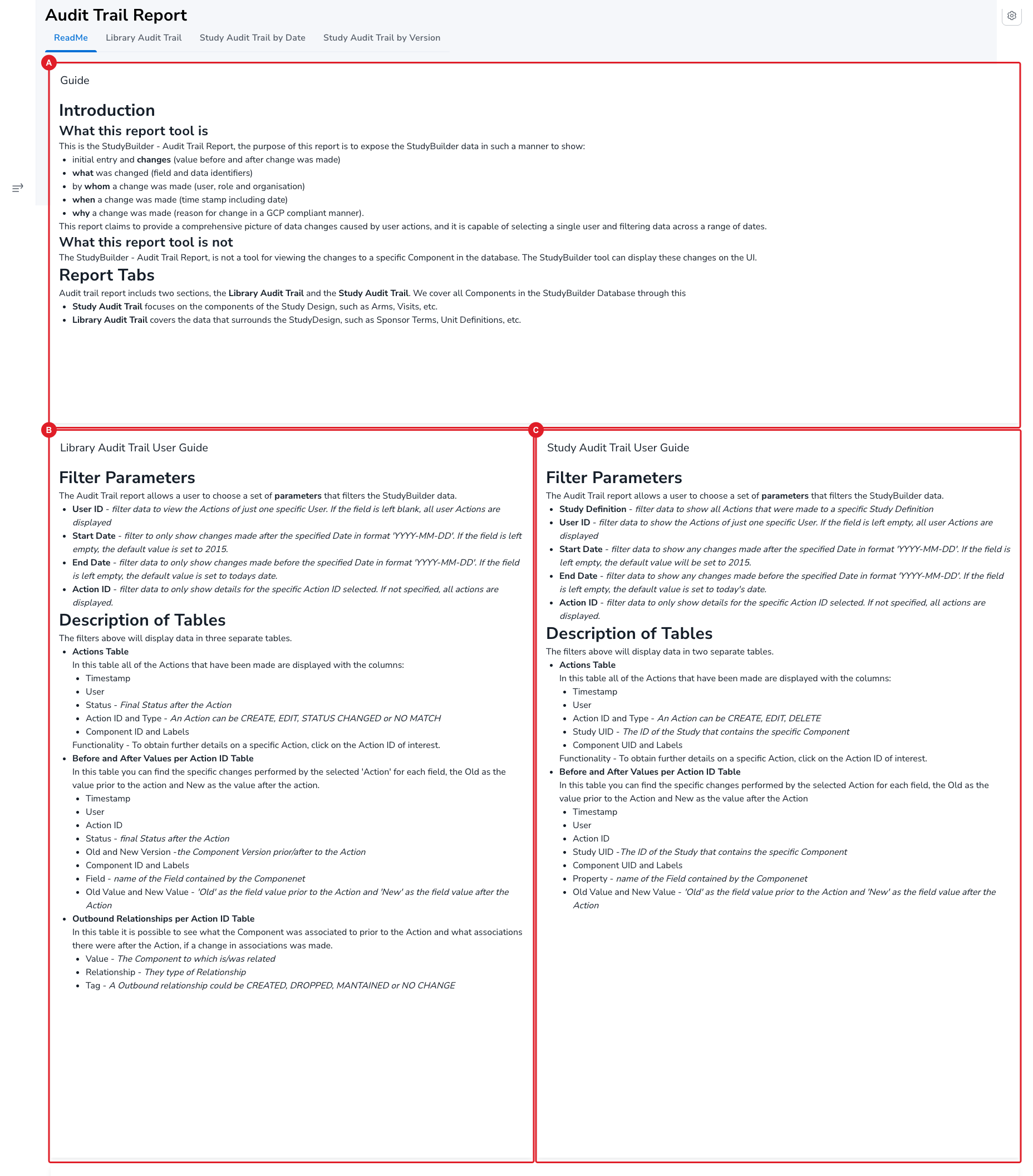
The ReadMe is organised as three guide cards. The Introduction (A) explains what the report is (a comprehensive picture of who changed what, when and why — value before and after, by whom, time-stamped, with a GCP-compliant reason for change) and what it is not (it is not a tool for viewing the history of one specific component — the StudyBuilder UI does that). It also notes the report covers two areas: the Library Audit Trail (Sponsor Terms, Unit Definitions and other data surrounding the study design) and the Study Audit Trail (Study Design components such as Arms, Visits, etc.).
The Library Audit Trail User Guide (B) and Study Audit Trail User Guide (C) each describe their filter parameters (User ID, Start Date, End Date, Action ID — plus Study Definition for the study trail) and the detail tables produced (Actions Table; Before-and-After Values per Action ID; and, for the library trail, Outbound Relationships per Action ID).
Library Audit Trail
Purpose: Shows a cross-cutting history of changes to library elements, with before/after values and relationships for each action.
When to use: Use when you need to browse or filter library element changes by user and/or date range, and drill into a single action.
Show Quick Guide
- Optionally filter by Select User (A), Select Start Date (B) and Select End Date (C) — leave blank to show all.
- In the Actions Table (D) click an Action ID to load that action's details.
- Review the change detail in (E)–(H).
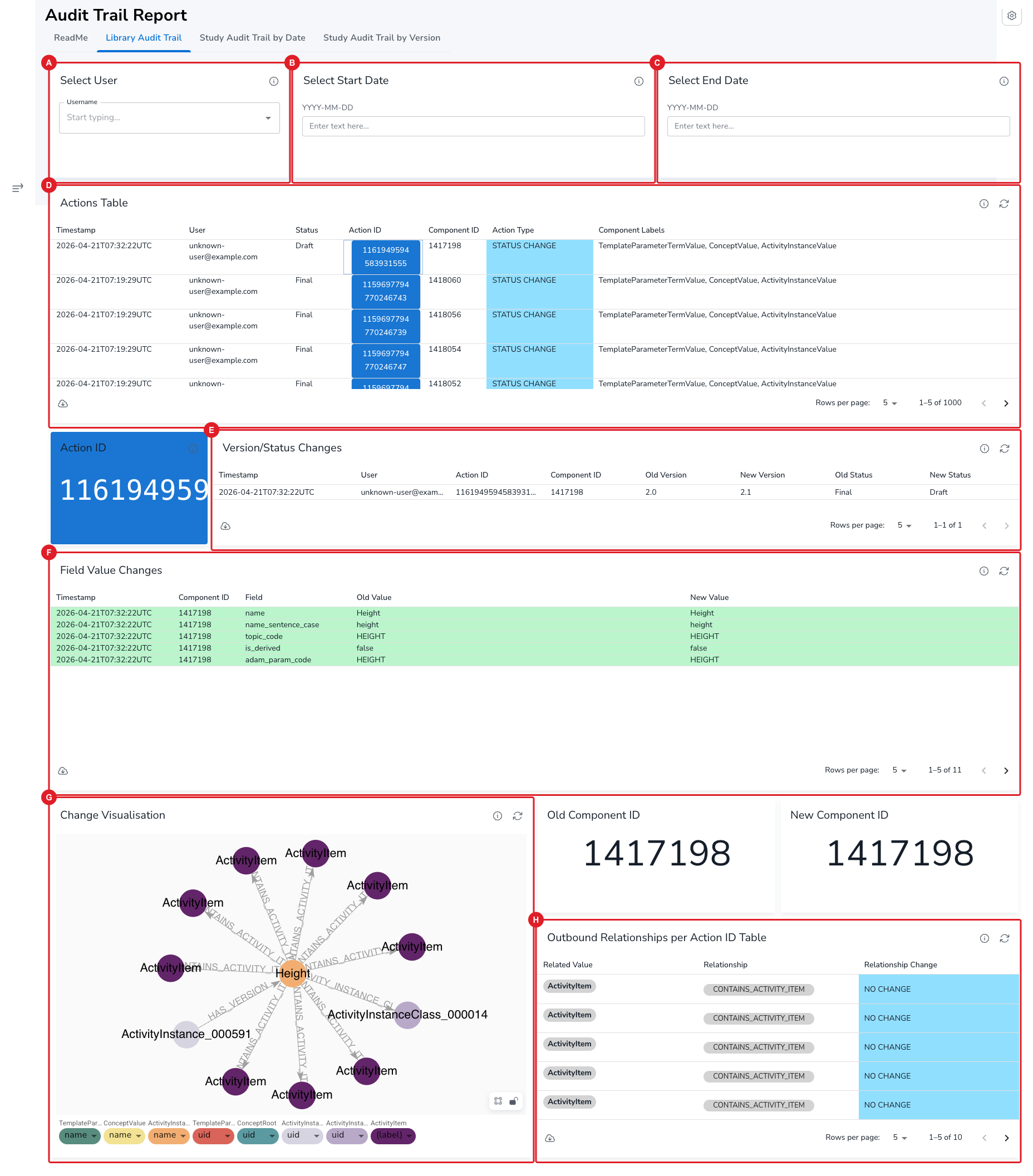
Use the filters to narrow the trail: Select User (A) limits to one user (blank = all users), and Select Start Date (B) / Select End Date (C) bound the period (format YYYY-MM-DD; blank defaults to 2015 and today respectively). The Actions Table (D) lists every matching action — Timestamp, User, Status, Action ID, Component ID, Action Type (CREATE, EDIT, STATUS CHANGE or NO MATCH) and Component Labels. Click an Action ID (in the worked example 1161949594583931555, a STATUS CHANGE on the "Height" activity instance) to populate the detail cards:
- Version/Status Changes (E) — the version and status before/after the action (e.g.
2.0 → 2.1,Final → Draft). - Field Value Changes (F) — each field changed by the action, with its Old Value and New Value.
- Change Visualisation (G) — a graph view of the component and its relationships for the action.
- Outbound Relationships per Action ID Table (H) — what the component was related to before/after, with a Relationship Change of CREATED, DROPPED, MAINTAINED or NO CHANGE.
NOTE
The detail cards stay empty until an Action ID is selected. The Actions Table is capped at 1000 rows.
Study Audit Trail by Date
Purpose: Shows the history of changes to a study's definition within a date range, with drill-down into each action's field changes.
When to use: Use when you need to review a study's changes by calendar date and drill into a single action.
Show Quick Guide
- Optionally filter by Select User (A), Select Start Date (B) and Select End Date (C).
- Pick a study in Select Study UID (E) — the Actions Table on Study_… (F) then lists that study's actions.
- Click an Action ID in (F) to load Change Visualisation (G) and Field Value Changes (H).
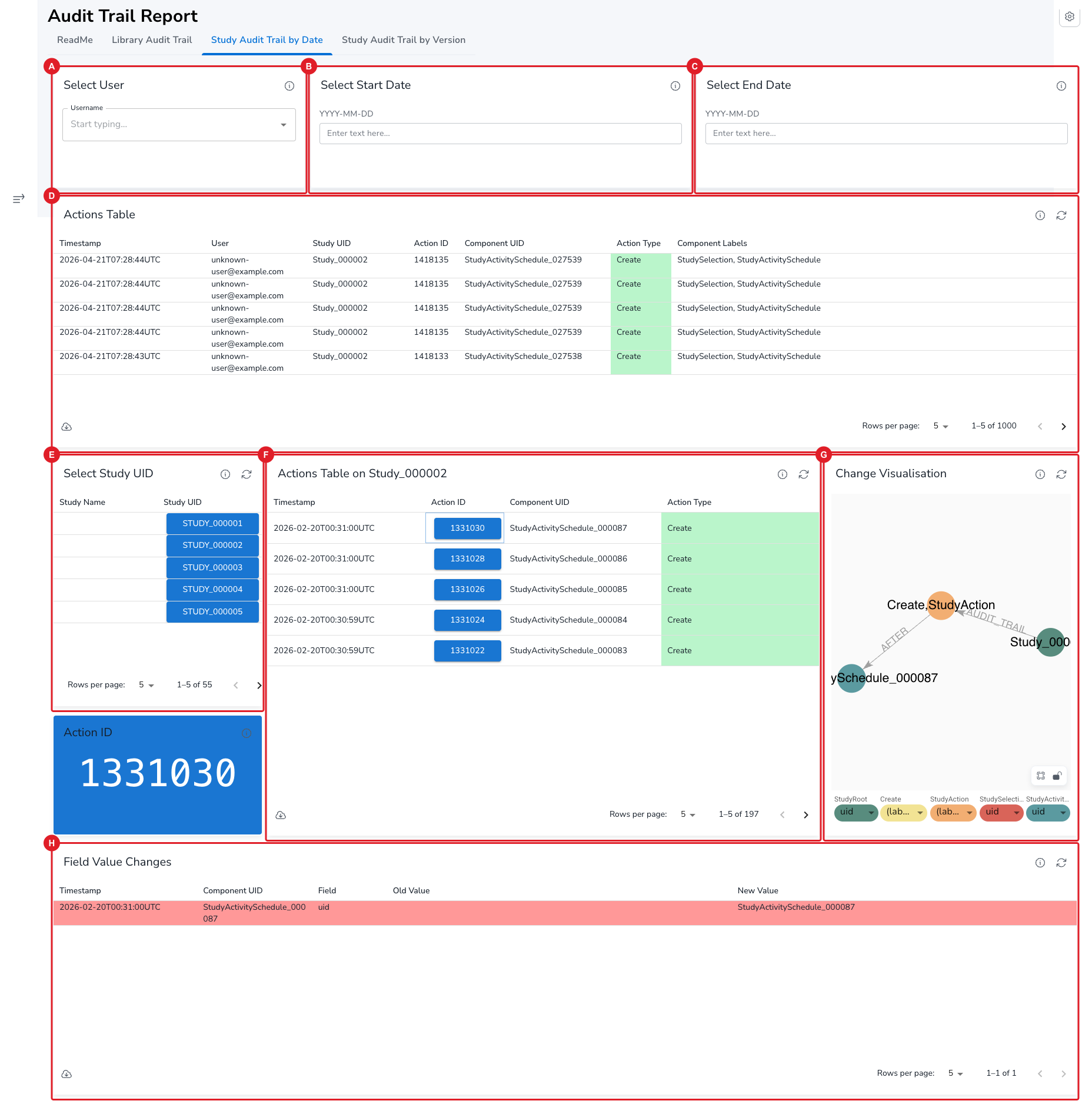
The optional filters Select User (A), Select Start Date (B) and Select End Date (C) work as on the Library tab. The Actions Table (D) shows actions across all studies (with a Study UID column); to focus on one study, pick it in Select Study UID (E) — in the worked example Study_000002. The Actions Table on Study_000002 (F) then lists that study's actions (Timestamp, Action ID, Component UID, Action Type). Click an Action ID (here 1331030, a Create on a StudyActivitySchedule) to populate the Change Visualisation graph (G) and the Field Value Changes table (H) with the action's before/after field values.
NOTE
(G) and (H) stay empty until an Action ID is selected.
Study Audit Trail by Version
Purpose: Shows the history of changes to a study's definition between two study versions, with drill-down into each action's field changes.
When to use: Use when you need to compare a study's changes across specific study versions rather than by calendar date.
Show Quick Guide
- Pick a study in Select Study UID (A).
- Select a row in both Select Study Min Date Version (B) and Select Study Max Date Version (C) — this defines the version window. (E) Selections Table confirms the chosen study and version dates.
- In Actions Table on Study_… (F) click an Action ID to load Change Visualisation (G) and Field Value Changes (H). Optionally narrow by Select User (D).
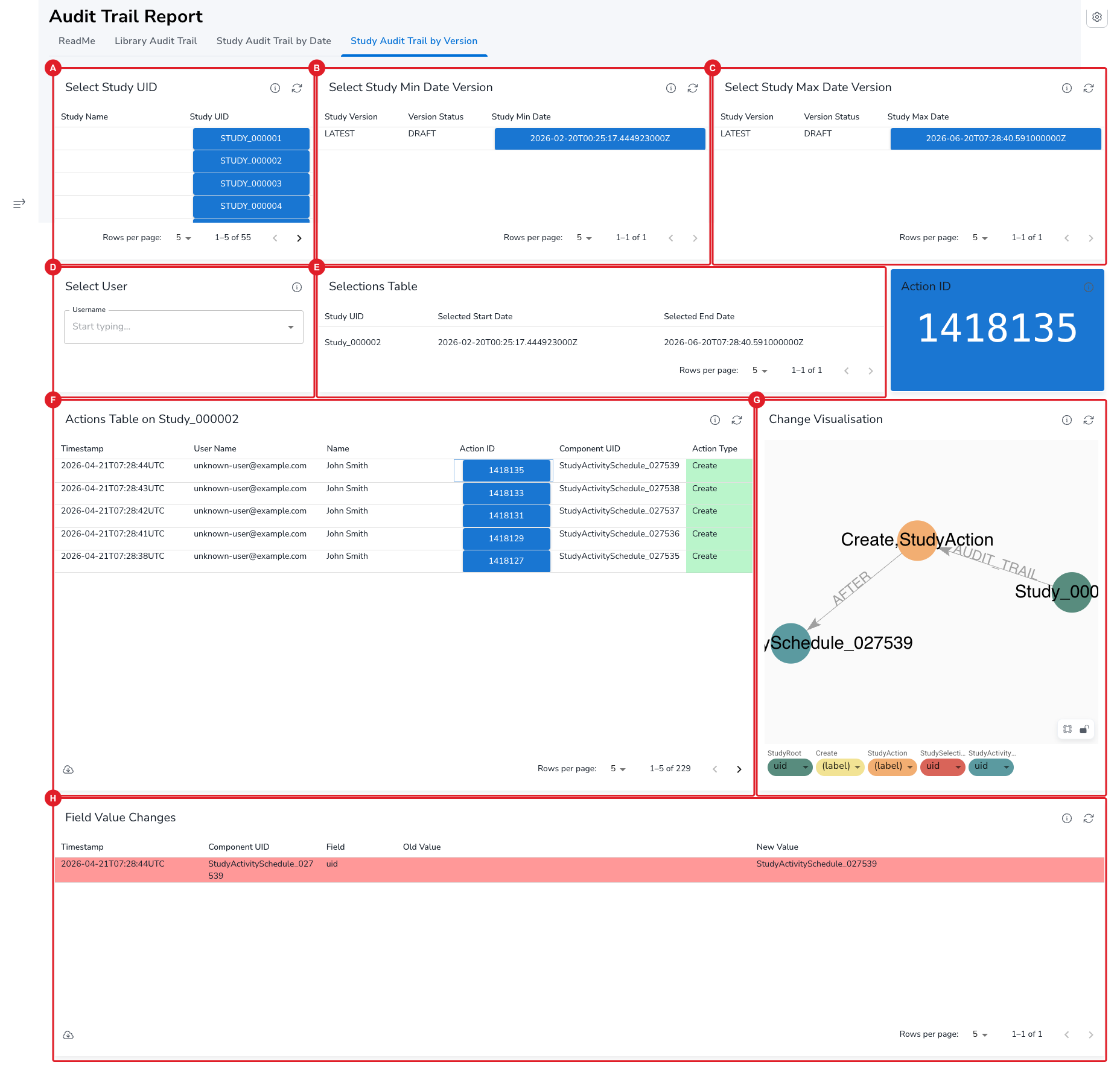
Pick the study in Select Study UID (A) — in the worked example Study_000002. Then choose the version window: select a row in Select Study Min Date Version (B) and one in Select Study Max Date Version (C); each row is a study version with its Version Status and timestamp. The Selections Table (E) echoes the resolved selection (study UID + selected start/end version datetimes), and Select User (D) optionally filters by user. The Actions Table on Study_000002 (F) lists the study's actions in that window; click an Action ID (here 1418135, a Create on a StudyActivitySchedule) to populate the Change Visualisation graph (G) and the Field Value Changes table (H).
IMPORTANT
You must select a row in both the Min and Max version cards. If only date-style parameters are present (for example carried over from the by Date tab), the Actions Table can error with "Cannot select datetime from: …"; selecting the two version rows supplies full version datetimes and clears it.
Show Solution Architecture
The OpenStudyBuilder system is based on a linked graph database, and the audit trail is an integrated part of how versioning is supported — see Versioning and Audit Trail. Study-definition reason-for-change is recorded at study lock, not per field.
Common errors
| Symptom | Interpretation | Likely cause | Fix |
|---|---|---|---|
| Reason for change is blank for a study change | Expected — not a missing value | Study reasons are captured at lock, not per change | Browse reasons under study versioning |
| Hard to see one component's history | This report is the wrong tool for that view | The Audit Trail is cross-cutting, not component-scoped | Use the in-app History page for that component |
| "Cannot select datetime from: …" on Study Audit Trail by Version | A genuine input error, easily corrected | Date-style parameters carried over from another tab instead of version datetimes | Select a row in both the Min and Max version cards to supply full version datetimes |
| An Actions Table looks truncated | A display limit, not data loss | Tables are capped at a 1000-row display limit | Narrow the list with the user/date filters, or the study/version selection |
If this does not resolve the issue, contact your OpenStudyBuilder administrator.