
Appearance
CRF Library Versions
Where to find it: Reports button → NeoDash → "CRF Library Versions" in the Report navigation panel.
Purpose
Compare versions of CRF collections as well as individual CRFs, Groups, and Items, with a drill-down view of differences in attributes, structure, and content between versions of CRF library elements.
Concept & definitions
- Collection / CRF / Group / Item — the CRF library hierarchy, each versionable and comparable independently.
- Base version vs Compare version — the two versions being diffed.
- Change Type — ⚪ No Changes, ✅ Added, ❌ Removed, 🔄 Modified.
When to use
Use when you need to see how a CRF collection, CRF, Group, or Item changed between versions — for release notes, quality review, or tracking design evolution.
Report tabs
The report is organised in different tabs, each supporting a different purpose. To open the report, see Open NeoDash on the section landing page.
| Tab | Use it to… |
|---|---|
| ReadMe | Get oriented before comparing versions. Start here. |
| CRF Collection | Drill down through a CRF collection to compare CRFs, Groups, and Items between two collection versions. |
| Collection release Notes | Read a consolidated, filterable list of all changes between two collection versions. |
| CRF Versions | Compare two versions of a single CRF independently of collection, and see which collections contain each. |
| CRF Release Notes | Read a consolidated change list between two versions of an individual CRF. |
| Group Versions | Compare two versions of a single Group independently of CRF/collection, and see where each is used. |
| Item Versions | Compare two versions of a single Item — the most granular level — and see its full usage hierarchy. |
ReadMe
Purpose: Introduces the report and summarises what each tab covers.
When to use: Start here before comparing CRF library versions, to get oriented on the report's tabs.
Show Quick Guide
The ReadMe tab introduces the report and its tabs. Besides the ReadMe tab the report holds the following tabs:
- CRF Collection tab provides a drill-down approach to compare CRF collections, view differences in CRFs, Groups, and Items within the collections.
- Collection Release Notes tab displays a consolidated view of all changes between two collection versions with filtering options.
- CRF Versions tab focuses on comparing individual CRF versions, displaying attribute differences and which collections contain them.
- CRF Release Notes tab provides a consolidated view of all changes between two CRF versions.
- Group Versions tab focuses on comparing individual Group versions, displaying attribute differences and which collections and CRFs contain them.
- Item Versions tab focuses on comparing individual Item versions, displaying attribute differences and which collections, CRFs, and Groups contain them.
CRF Collection
Purpose: Lets you drill down through a CRF collection to compare its CRFs, Groups, and Items between two collection versions.
When to use: Use when you need to see how a CRF collection has changed between two versions, from the collection level down to individual Items.
Show Quick Guide
- Select a CRF collection (A), then choose a Base (B) and Compare (C) version.
- Read the colour-coded CRF attribute differences (green = no change, red = difference).
- Select a CRF, then a Group, to drill down into Group and Item attribute differences.
This tab enables a comprehensive drill-down comparison workflow for CRF collections:
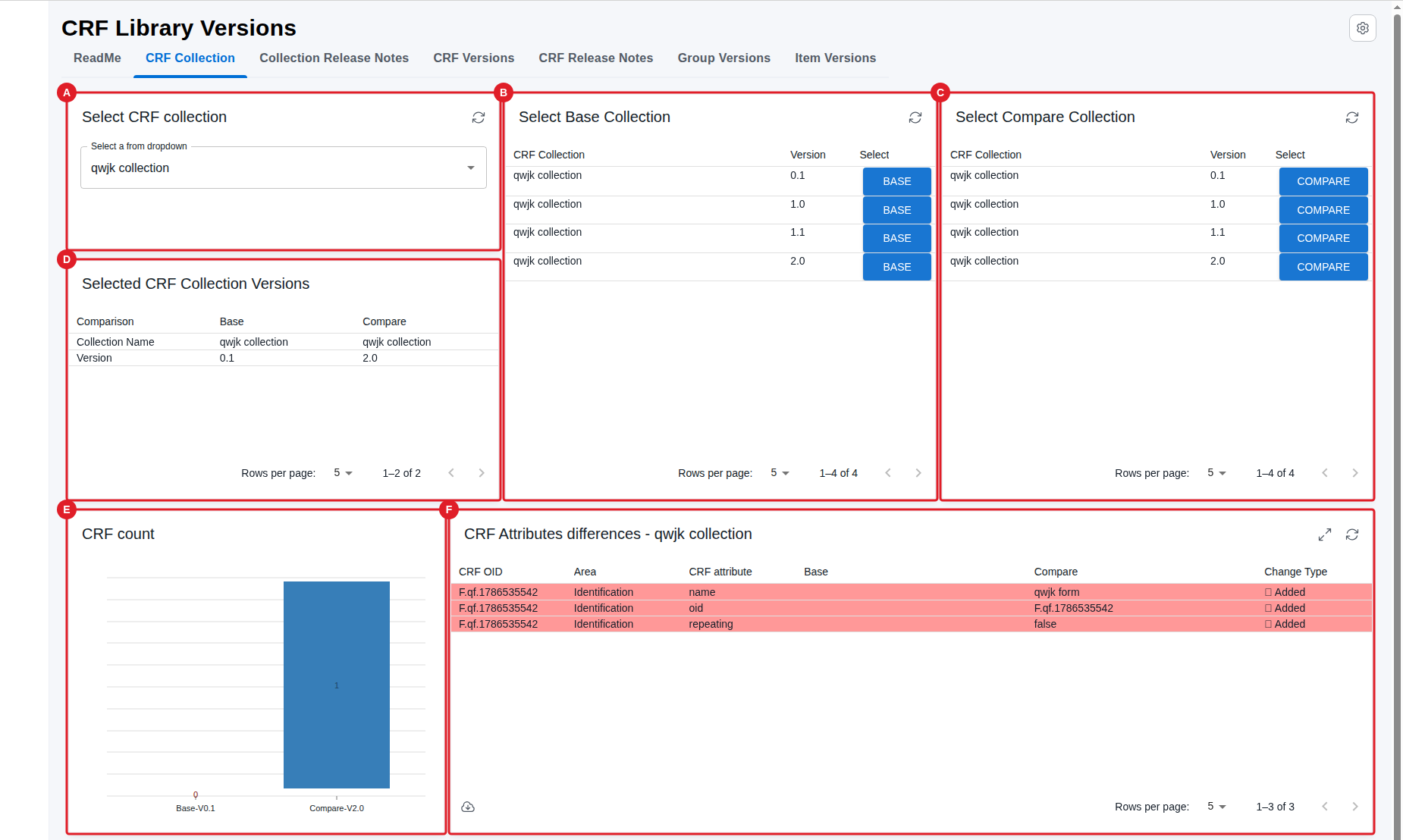
The CRF Collection tab showing selection dropdowns (A), version selection tables (B, C), selected versions summary (D), and CRF count visualization (E)
Select a CRF collection (A) - Use the dropdown to select the CRF collection you want to compare.
Select Base Collection (B) - Choose the base version from the table by clicking on the "Select" column. This sets the baseline for comparison.
Select Compare Collection (C) - Choose the comparison version from the table by clicking on the "Select" column.
Selected CRF Collection Versions (D) - View a summary of your selected base and compare versions.
CRF count (E) - Visual bar chart showing the number of CRFs in each selected version.
CRF Attributes differences (F) - Table displaying differences in CRF attributes between the two versions. Rows are colour-coded:
- Green background indicates no changes
- Red background indicates differences (Added, Removed, or Modified)
The table shows various attribute areas including:
- Identification attributes (OID, name, repeating)
- Description attributes
- Alias attributes
- Attribute Vendor Extensions
- Element Vendor Extensions
- Attribute Vendor Extension NameSpaces
- Element Vendor Extension NameSpaces

CRF attributes differences table showing colour-coded rows with green for unchanged attributes and red for differences. The table displays various attribute areas including Identification, Description, Alias, and Vendor Extensions
Change Type indicators used throughout:
- ⚪ No Changes - Attribute values are identical
- ✅ Added - Attribute exists only in Compare version
- ❌ Removed - Attribute exists only in Base version
- 🔄 Modified - Attribute exists in both but with different values
To drill further down you can select a specific CRF.
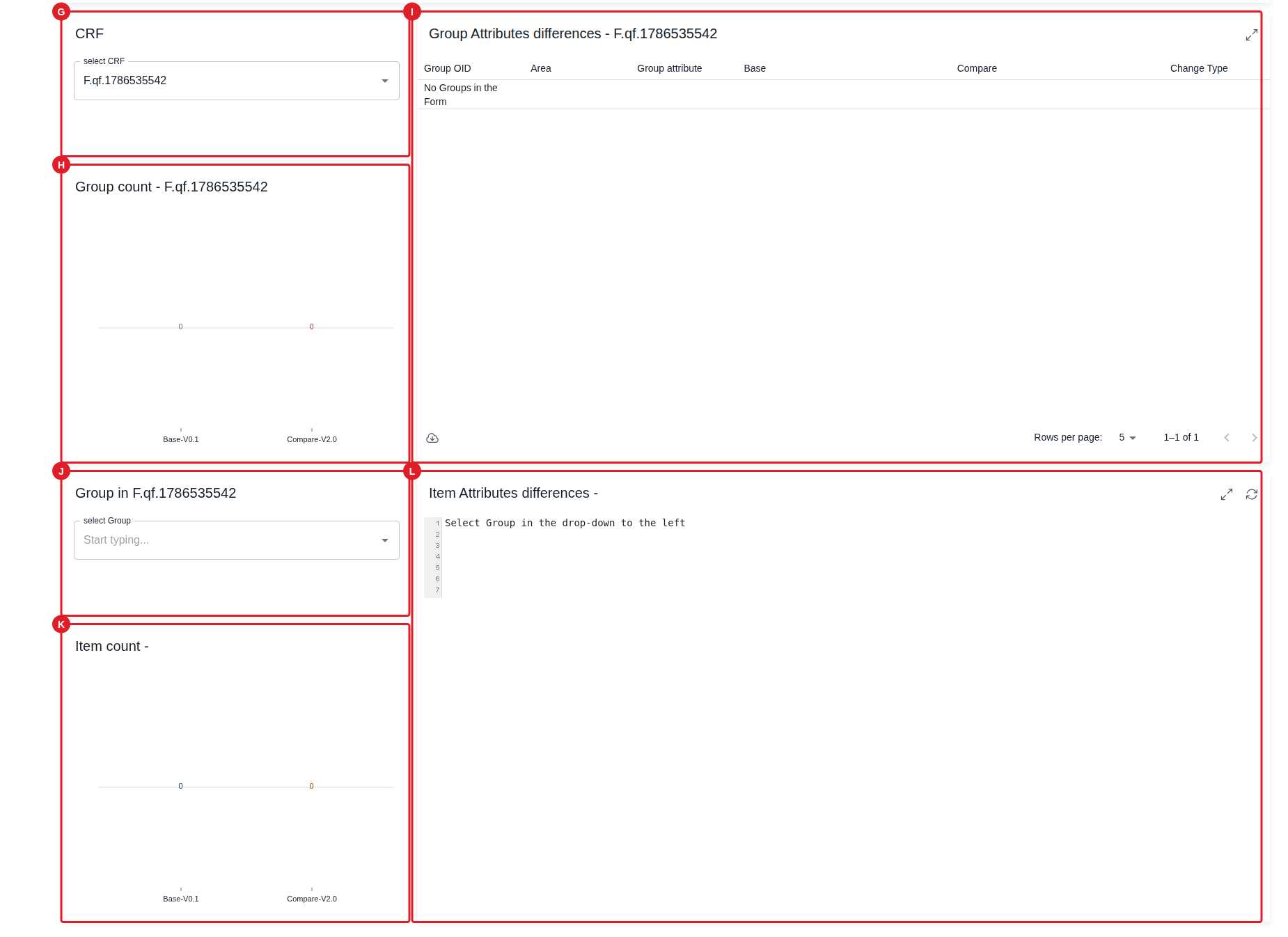
The drill-down in the Collection. Selecting CRF (G), Group Count in CRF selected (H), Group Attribute differences (I), Selecting Group (in selected CRF) (J), Item Count in selected Group (K), Item Attribute differences (in selected Group) (L)
Select CRF (G) - Dropdown to select a specific CRF within the collection for detailed comparison.
Group count (H) - Visual bar chart showing the number of Groups in the selected CRF for each version.
Group Attributes differences (I) - Table displaying differences in Group attributes for the selected CRF. The table includes:
- Group OID
- Area (Identification, Description, Alias, Domain, Vendor Extensions)
- Group attributes and their values in Base and Compare versions
- Change Type indicators
NOTE
If a CRF has no Groups, the table will display "No Groups in the Form".
Select Group (J) - Dropdown to select a specific Group within the CRF for detailed comparison.
Item count (K) - Visual bar chart showing the number of Items in the selected Group for each version.
Item Attributes differences (L) - Table displaying differences in Item attributes for the selected Group. The table includes:
- Item OID
- Area (Identification, Description, Alias, Terms, Vendor Extensions)
- Item attributes and their values in Base and Compare versions
- Change Type indicators
NOTE
If a Group has no Items, the table will display "No Items in the Group".
Collection release Notes
Purpose: Provides a consolidated, filterable list of every change between two collection versions.
When to use: Use when you need release documentation or a quality review summary of everything that changed in a collection, rather than a tab-by-tab drill-down.
Show Quick Guide
- First select the Base and Compare collection versions on the CRF Collection tab.
- Read the main table of all CRF, Group, and Item changes.
- Filter by CRF (A) or Change Type (B), and check the Summary (C) statistics.
This tab provides a consolidated view of all changes between two collection versions, ideal for generating release documentation.
The main table displays all changes across CRFs, Groups, and Items with the following information:
- CRF OID - The identifier of the CRF
- Level - Whether the change is at CRF, Group, or Item level
- Group OID - The identifier of the Group (if applicable)
- Item OID - The identifier of the Item (if applicable)
- Attribute - The specific attribute that changed
- Change Type - Type of change (No Changes, Added, Removed, Modified)
- Base Value - Value in the base version
- Compare Value - Value in the compare version
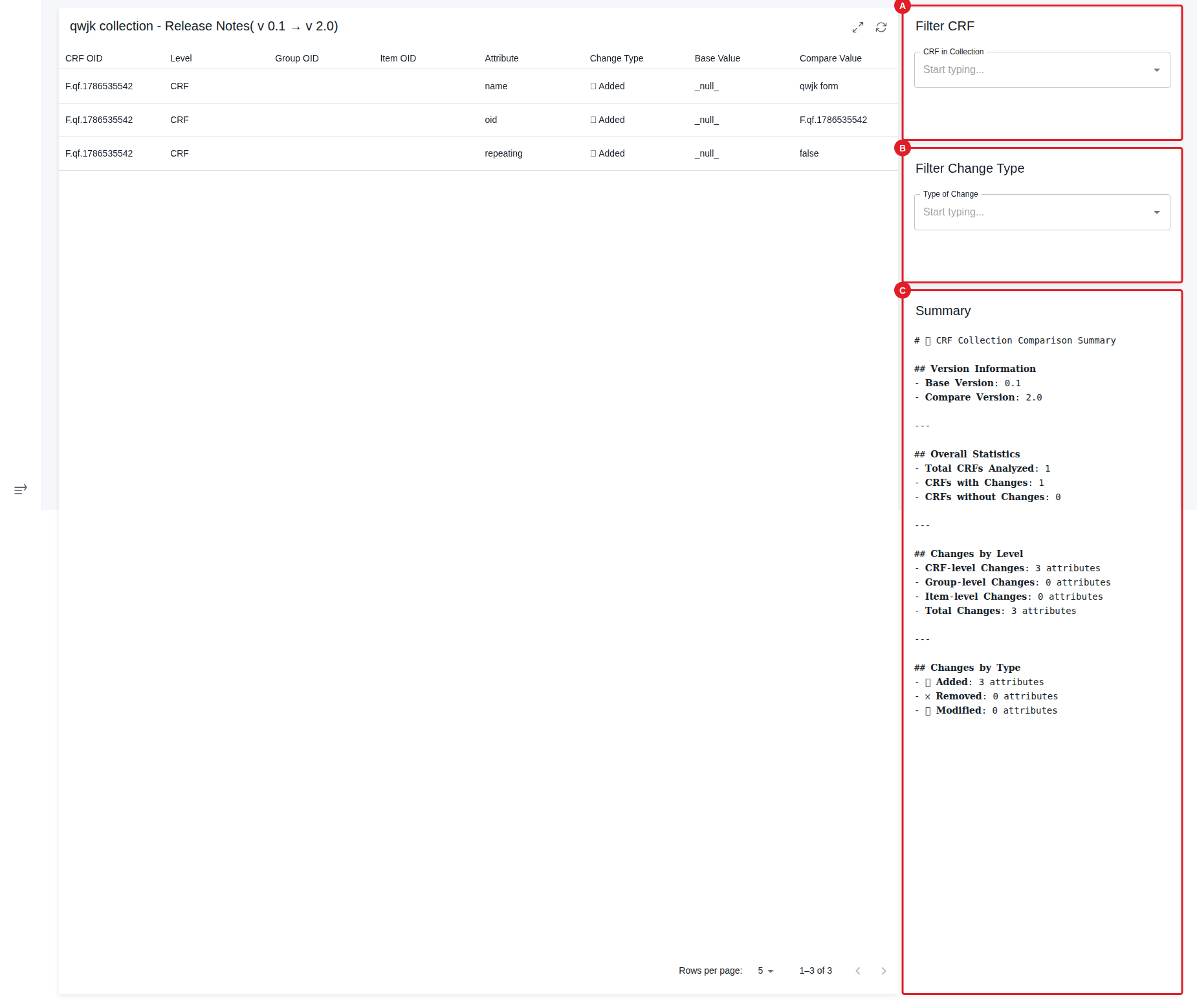
Collection release notes displaying all changes across CRFs, Groups, and Items with filtering options and summary statistics
IMPORTANT
Before using this tab, you must first select the Base and Compare collection versions on the CRF Collection tab.
Filtering options:
Filter CRF (A) - Dropdown to filter the results to a specific CRF within the collection.
Filter Change Type (B) - Dropdown to filter by type of change:
- ⚪ No Changes
- ✅ Added
- ❌ Removed
- 🔄 Modified
Summary (C) - Displays summary statistics about the comparison:
- Total number of changes
- Breakdown by change type
- Counts at each level (CRF, Group, Item)
NOTE
CRFs with no changes will show a single row with status "No changes" for easy identification of unchanged CRFs.
The release notes view is useful for:
- Generating documentation for version updates
- Reviewing the scope of changes before promoting a collection version
- Communicating changes to stakeholders
- Quality review of collection modifications
CRF Versions
Purpose: Compares two versions of a single CRF independently of any collection, and shows which collections contain each version.
When to use: Use when you want to track how a specific CRF has evolved over time, regardless of which collection it belongs to.
Show Quick Guide
- Select a CRF (A), then choose a Base (B) and Compare (C) version.
- Review which collections contain each version (E) and the colour-coded CRF attribute differences (F).
- Select a Group (G) to drill into Group and Item attribute differences.
This tab takes a CRF-focused approach, allowing you to compare different versions of a specific CRF regardless of which collection it belongs to. This is useful when you want to track how a CRF has evolved over time across different collections.
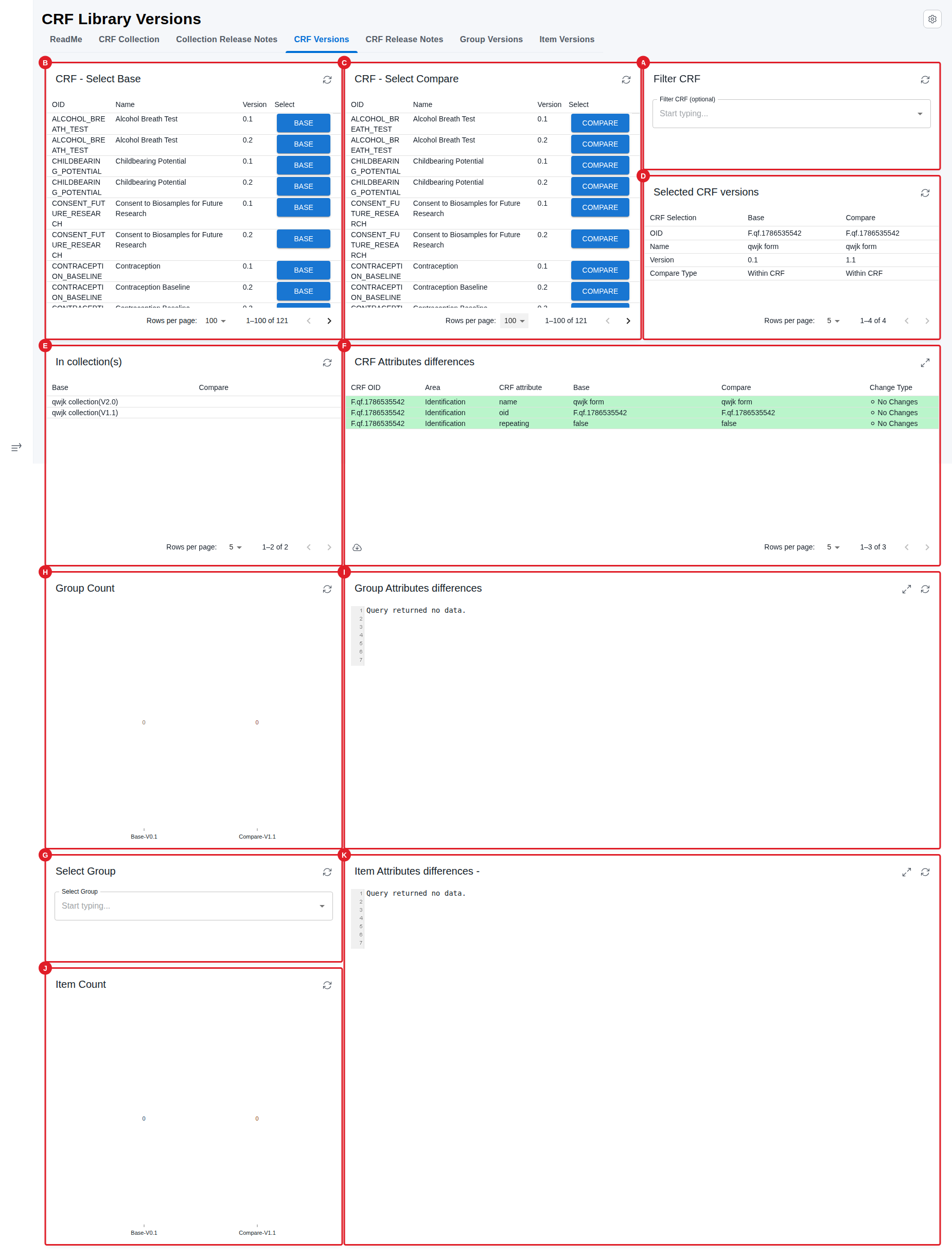
The CRF Versions tab showing CRF selection (A), base and compare version selection (B, C), collections containing each version (E), and attribute differences (F)
Select a CRF (A) - Use the dropdown to select the CRF you want to analyse. The dropdown allows searching by CRF OID or name.
Select Base CRF Version (B) - Choose the base version from the table by clicking on the "Select" column. The table displays:
- CRF Name
- Version number
- Selection button
Select Compare CRF Version (C) - Choose the comparison version from the table by clicking on the "Select" column.
Selected CRF Versions (D) - View a summary of your selected base and compare versions, including:
- CRF OID
- Version numbers
- Comparison type (Base/Compare)
Collections containing the CRF (E) - Table showing which CRF collections contain each version of the selected CRF. This helps you understand where each CRF version is being used.
CRF Attributes differences (F) - Table displaying differences in CRF attributes between the two selected versions. The table structure is similar to the CRF Collection tab:
- CRF OID
- Area (Identification, Description, Alias, Vendor Extensions)
- CRF attributes and their values in Base and Compare versions
- Change Type indicators (⚪ No Changes, ✅ Added, ❌ Removed, 🔄 Modified)
Rows are colour-coded with green for no changes and red for differences.
Select Group on CRF (G) - Dropdown to select a specific Group within the CRF for detailed comparison.
Group count (H) - Visual bar chart showing the number of Groups in each selected CRF version.
Group Attributes differences (I) - Table displaying differences in Group attributes for the selected Group across the two CRF versions:
- Group OID
- Area (Identification, Description, Alias, Domain, Vendor Extensions)
- Group attributes and their values
- Change Type indicators
Item count (J) - Visual bar chart showing the number of Items in the selected Group for each CRF version.
Item Attributes differences (K) - Table displaying differences in Item attributes for the selected Item:
- Item OID
- Area (Identification, Description, Alias, Terms, Vendor Extensions)
- Item attributes and their values
- Change Type indicators
TIP
This tab focuses on CRF versions independently of collections, making it easier to track the evolution of a specific CRF design across different contexts.
CRF Release Notes
Purpose: Provides a consolidated change list between two versions of an individual CRF.
When to use: Use when you need release notes for a single CRF rather than an entire collection.
Show Quick Guide
- First select the Base and Compare CRF versions on the CRF Versions tab.
- Read the main table (A) of all CRF, Group, and Item changes.
- Check the Summary Statistics (B) for the breakdown of changes.
This tab provides a consolidated release notes view for CRF version comparisons, similar to the Collection release Notes tab but focused on individual CRF versions rather than entire collections.
IMPORTANT
Before using this tab, you must first select the Base and Compare CRF versions on the CRF Versions tab.
Main Display:
The main table (A) displays all changes across the selected CRF versions at the CRF, Group, and Item levels with the following columns:
- CRF OID - The identifier of the CRF being compared
- Level - Whether the change is at CRF, Group, or Item level
- Group OID - The identifier of the Group (if applicable)
- Item OID - The identifier of the Item (if applicable)
- Attribute - The specific attribute that changed
- Change Type - Type of change:
- ⚪ No Changes - Attribute values are identical
- ✅ Added - Attribute exists only in Compare version
- ❌ Removed - Attribute exists only in Base version
- 🔄 Modified - Attribute exists in both but with different values
- Base Value - Value in the base version
- Compare Value - Value in the compare version
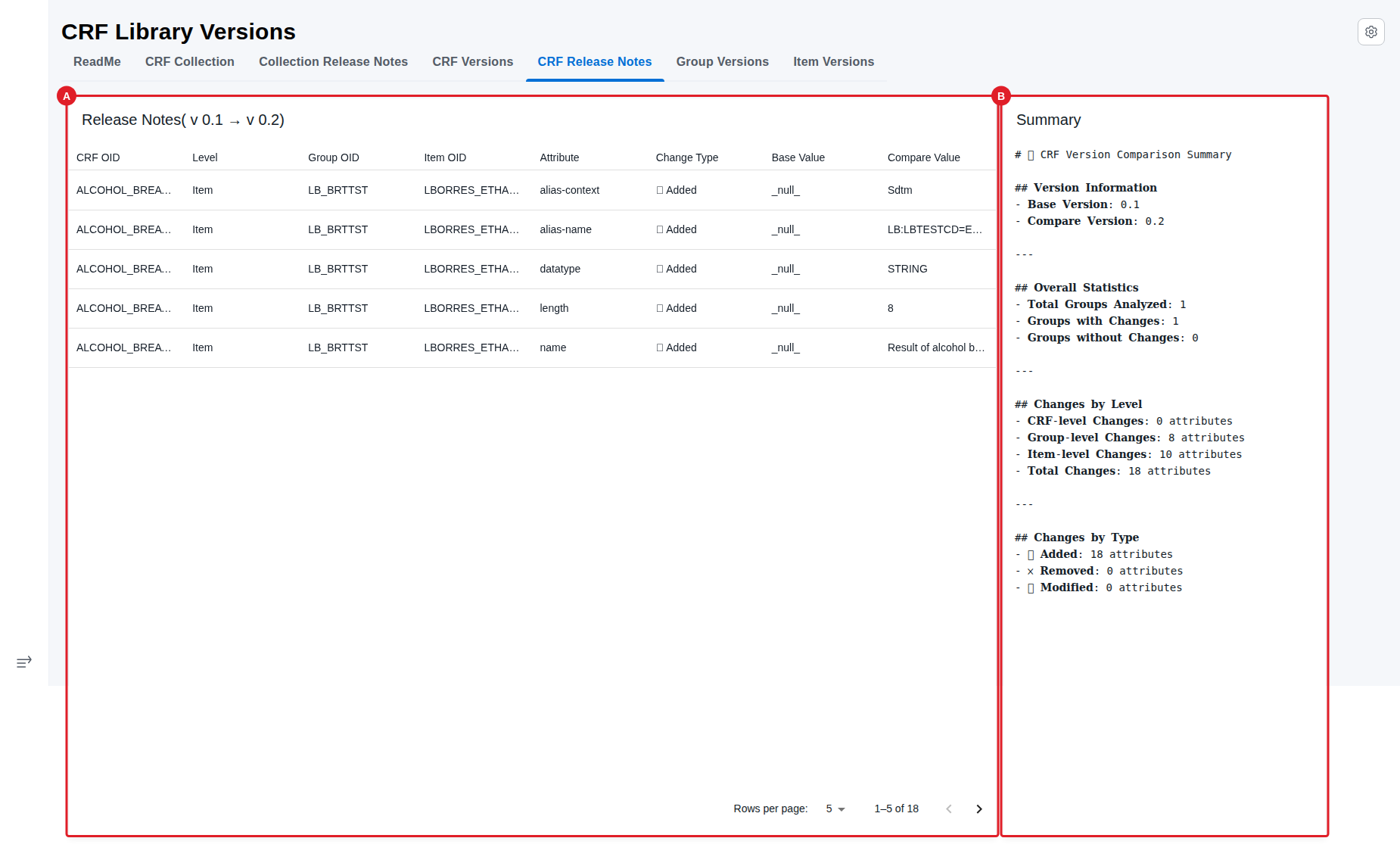
CRF release notes view (A) and summary statistics (B) showing the breakdown of changes
- Summary Statistics (B) - Displays summary information about the comparison:
- Total number of changes detected
- Breakdown by change type (Added, Removed, Modified)
- Count of changes at each level (CRF, Group, Item)
The CRF Release Notes view is useful for:
- Documenting CRF version updates
- Understanding the scope of changes between CRF versions
- Tracking design evolution of specific CRFs
- Supporting quality review processes
Group Versions
Purpose: Compares two versions of a single Group independently of CRF or collection, and shows where each version is used.
When to use: Use when you want to track how a reusable Group component has evolved across the CRFs and collections that contain it.
Show Quick Guide
- Select a Group (A), then choose a Base (B) and Compare (C) version.
- Review which collections and CRFs contain each version (E) and the colour-coded Group attribute differences (F).
- Check the Item count (G) and Item attribute differences (H).
This tab takes a Group-focused approach, allowing you to compare different versions of a specific Group (Item Group) regardless of which CRF or collection it belongs to. This is useful for tracking how a reusable Group component has evolved over time.
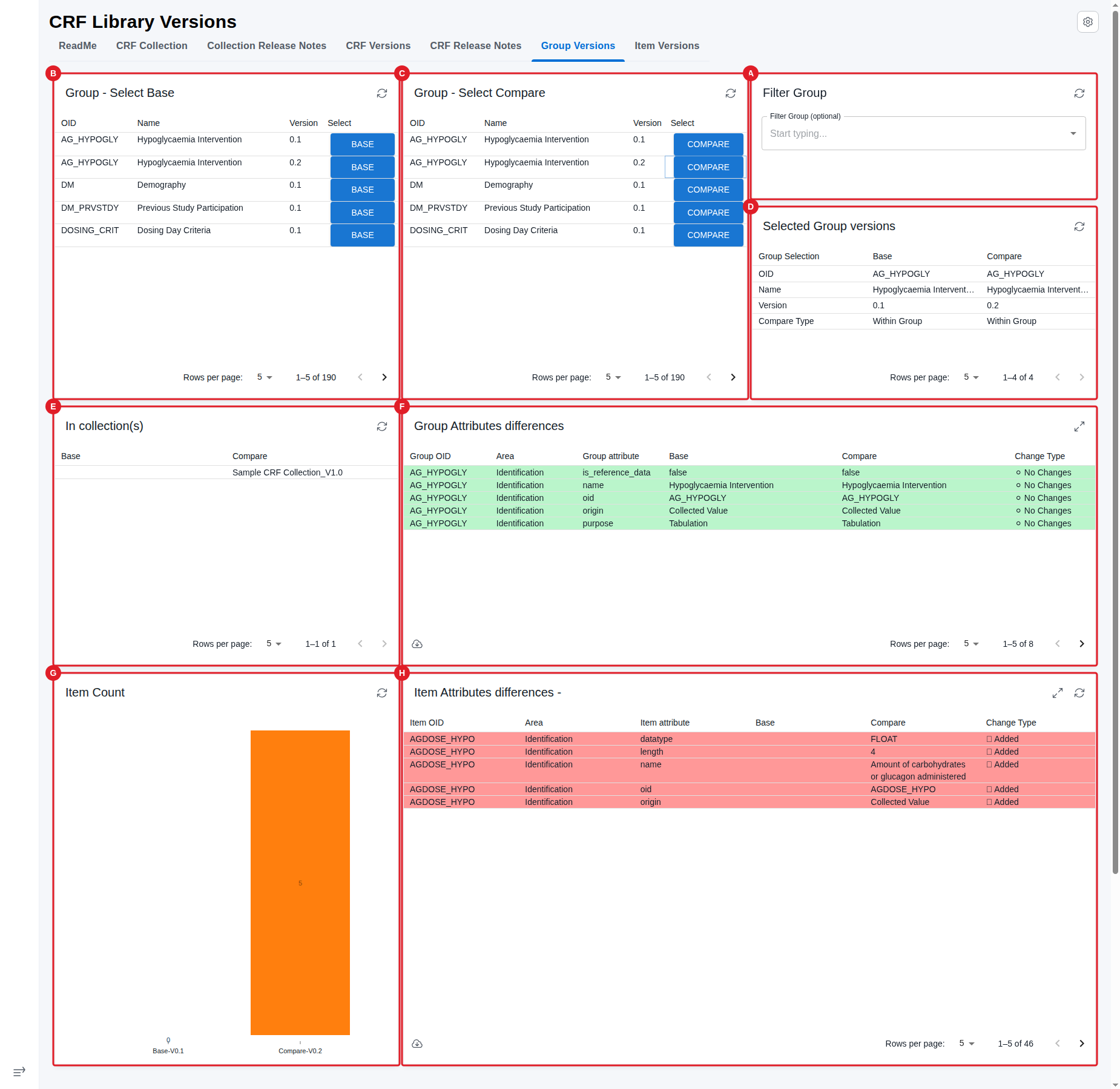
The Group Versions tab showing Group selection (A), version comparison tables (B, C), and the hierarchy showing which Collections and CRFs contain each Group version
Select a Group (A) - Use the dropdown to select the Group you want to analyse. The dropdown allows searching by Group OID or name.
Select Base Group Version (B) - Choose the base version from the table by clicking on the "Select" column. The table displays:
- Group Name
- Version number
- Selection button
Select Compare Group Version (C) - Choose the comparison version from the table by clicking on the "Select" column.
Selected Group Versions (D) - View a summary of your selected base and compare versions, including:
- Group OID
- Version numbers
- Comparison type (Base/Compare)
Collections and CRFs containing the Group (E) - Table showing which CRF collections and CRFs contain each version of the selected Group. This provides context about where the Group is being used:
- Collection name
- CRF name
- Group version
Group Attributes differences (F) - Table displaying differences in Group attributes between the two selected versions:
- Group OID
- Area (Identification, Description, Alias, Domain, Vendor Extensions)
- Group attributes and their values in Base and Compare versions
- Change Type indicators (⚪ No Changes, ✅ Added, ❌ Removed, 🔄 Modified)
Rows are colour-coded with green for no changes and red for differences.
Item count (G) - Visual bar chart showing the number of Items in each selected Group version.
Item Attributes differences (H) - Table displaying differences in Item attributes for the selected Item across the two Group versions:
- Item OID
- Area (Identification, Description, Alias, Terms, Vendor Extensions)
- Item attributes and their values
- Change Type indicators
TIP
This tab is particularly useful for understanding how reusable Group components have evolved across different CRF designs and collections.
Item Versions
Purpose: Compares two versions of a single Item — the most granular level — and shows its full usage hierarchy of Collections, CRFs, and Groups.
When to use: Use when you need to track how an individual data point has changed, independently of the Group, CRF, or collection it belongs to.
Show Quick Guide
- Select an Item (A), then choose a Base (B) and Compare (C) version.
- Read the colour-coded Item attribute differences (E).
- Review the complete hierarchy (F, G, H) of Collections, CRFs, and Groups that contain the Item.
This tab takes an Item-focused approach, allowing you to compare different versions of a specific Item regardless of which Group, CRF, or collection it belongs to. This is the most granular level of comparison available in the report, useful for tracking how individual data points have evolved over time.
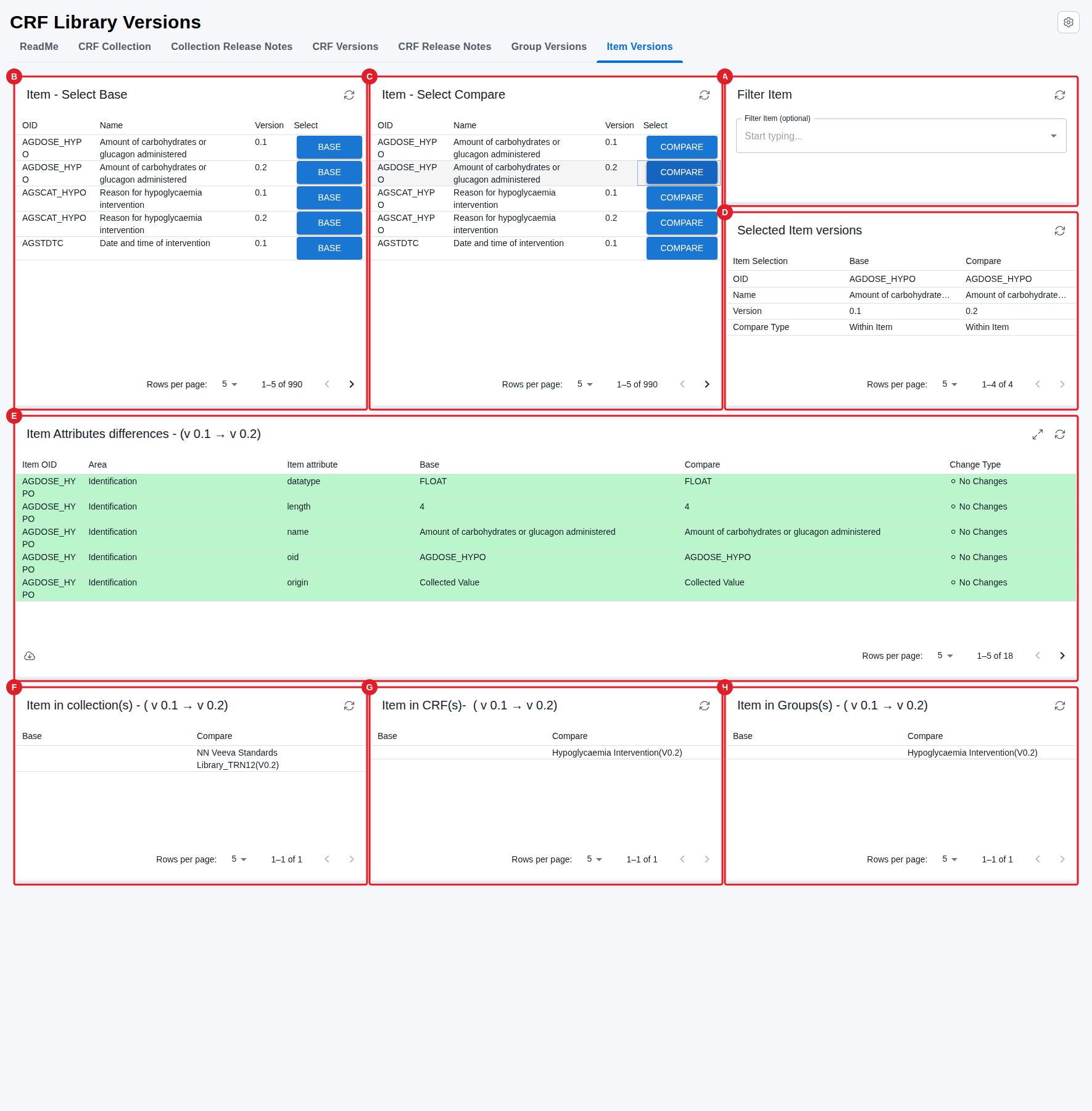
The Item Versions tab displaying Item selection (A), version comparison (B, C), and the complete hierarchy (E) showing Collections, CRFs, and Groups containing the Item
Select an Item (A) - Use the dropdown to select the Item you want to analyse. The dropdown allows searching by Item OID or name.
Select Base Item Version (B) - Choose the base version from the table by clicking on the "Select" column. The table displays:
- Item Name
- Version number
- Selection button
Select Compare Item Version (C) - Choose the comparison version from the table by clicking on the "Select" column.
Selected Item Versions (D) - View a summary of your selected base and compare versions, including:
- Item OID
- Version numbers
- Comparison type (Base/Compare)
Item Attributes differences (E) - Table displaying differences in Item attributes between the two selected versions:
- Item OID
- Area (Identification, Description, Alias, Terms, Vendor Extensions)
- Item attributes and their values in Base and Compare versions
- Change Type indicators (⚪ No Changes, ✅ Added, ❌ Removed, 🔄 Modified)
The table includes all Item-level attributes such as:
- Identification attributes (OID, name, data type, length, significant digits)
- Description attributes
- Alias attributes
- Codelist terms and submission values
- Vendor attribute extensions
- Vendor element extensions
Rows are colour-coded with green for no changes and red for differences.
Collections, CRFs, and Groups containing the Item (F,G,H) - Table showing the complete hierarchy of where each version of the selected Item is being used:
- Collection name (F)
- CRF name (G)
- Group name (H)
This provides full context about the Item's usage across the entire CRF library structure.
TIP
This tab is particularly useful for:
- Tracking changes to individual data collection points
- Understanding how controlled terminology assignments have changed
- Reviewing data type or validation rule modifications
- Analysing the impact of Item definition changes across multiple contexts
Show Solution Architecture
Each tab diffs two selected versions of a level in the CRF hierarchy (Collection → CRF → Group → Item). The CRF/Group/Item tabs work independently of collections, so a component's evolution can be tracked across the contexts that contain it. Rows are colour-coded (green = no change, red = difference) and classified by Change Type. Release-notes tabs require Base/Compare versions to be selected on the corresponding comparison tab first.
Common errors
| Symptom | Interpretation | Likely cause | Fix |
|---|---|---|---|
| A release-notes tab is empty | A required first step was skipped, not a report fault | Base/Compare versions not selected on the matching comparison tab | Select Base and Compare versions on the CRF Collection / CRF Versions tab first |
| "No Groups in the Form" / "No Items in the Group" shown | Expected — not an error | The selected CRF/Group has no children | Pick a CRF/Group that contains children |
| A CRF shows a single "No changes" row | Expected — confirms there are no differences | The CRF is unchanged between versions | Use it to confirm unchanged CRFs |
If this does not resolve the issue, contact your OpenStudyBuilder administrator.