
Appearance
Syntax Template Dashboard
Where to find it: Reports button → NeoDash → "Syntax Template Dashboard" in the Report navigation panel.
Purpose
Browse all syntax templates by template parameters, parameter values, and library; filter by type and sub-type; and see study usage.
Concept & definitions
- Parent template — a base syntax template (user-defined templates are technically parent templates too).
- Pre-instance template — a pre-instantiation of a parent template, made to support study search/selection; never related to a study.
- Template instantiation — a syntax template actually used on a study.
The Syntax Template Dashboard report can be used to browse all syntax templates by template parameters, parameter values, library, filtering by type and sub type as well as see study usage.
When to use
Use when you need to explore syntax templates and their parameters, or trace which studies use which template instantiations.
Report tabs
The report is organised in different tabs, each supporting a different purpose. To open the report, see Open NeoDash on the section landing page.
| Tab | Use it to… |
|---|---|
| ReadMe | Get oriented with the report and its tabs. Start here. |
| Select Template Parameter Value | Browse and select template parameters and their values; the selection filters all following tabs. |
| Parent Templates | List all parent templates (including user-defined ones), filtered by the selected template parameters. |
| Pre-instance Templates | List all pre-instantiations of parent templates that support study search and selection. |
| All Templates | View a joined listing of both parent and pre-instance templates. |
| Template Instantiations | List the syntax templates actually used on studies, in their latest version. |
| Study Usage | See which studies use the selected template instantiations. |
| Templates by Library | Get a summary overview of template counts by type and library. |
ReadMe
Purpose: Provides an orientation to the report and its tabs.
When to use: Open this tab first, before selecting parameters or exploring the other tabs.
Show Quick Guide
- Open the ReadMe tab.
- Read the orientation to the report and its tabs before selecting parameters.
Select Template Parameter Value
Purpose: Lets you browse and select template parameters or values, applying that selection as a filter across all following tabs.
When to use: Use when you want to narrow the report to specific template parameters or values before exploring templates.
Show Quick Guide
- Open the Select Template Parameter Value tab.
- Pick a template parameter in Select Template Parameter (A), or a value in Select Parameter Value (B).
- Your selection is applied to all following tabs.
On this tab you can list and search in all available template parameters in Template Parameters (C) as well as all available template parameter values in Template Parameter Values (D). The search can be by one of the columns in each table, or by selecting specific values from Select Template Parameter (A) or Select Parameter Value (B).
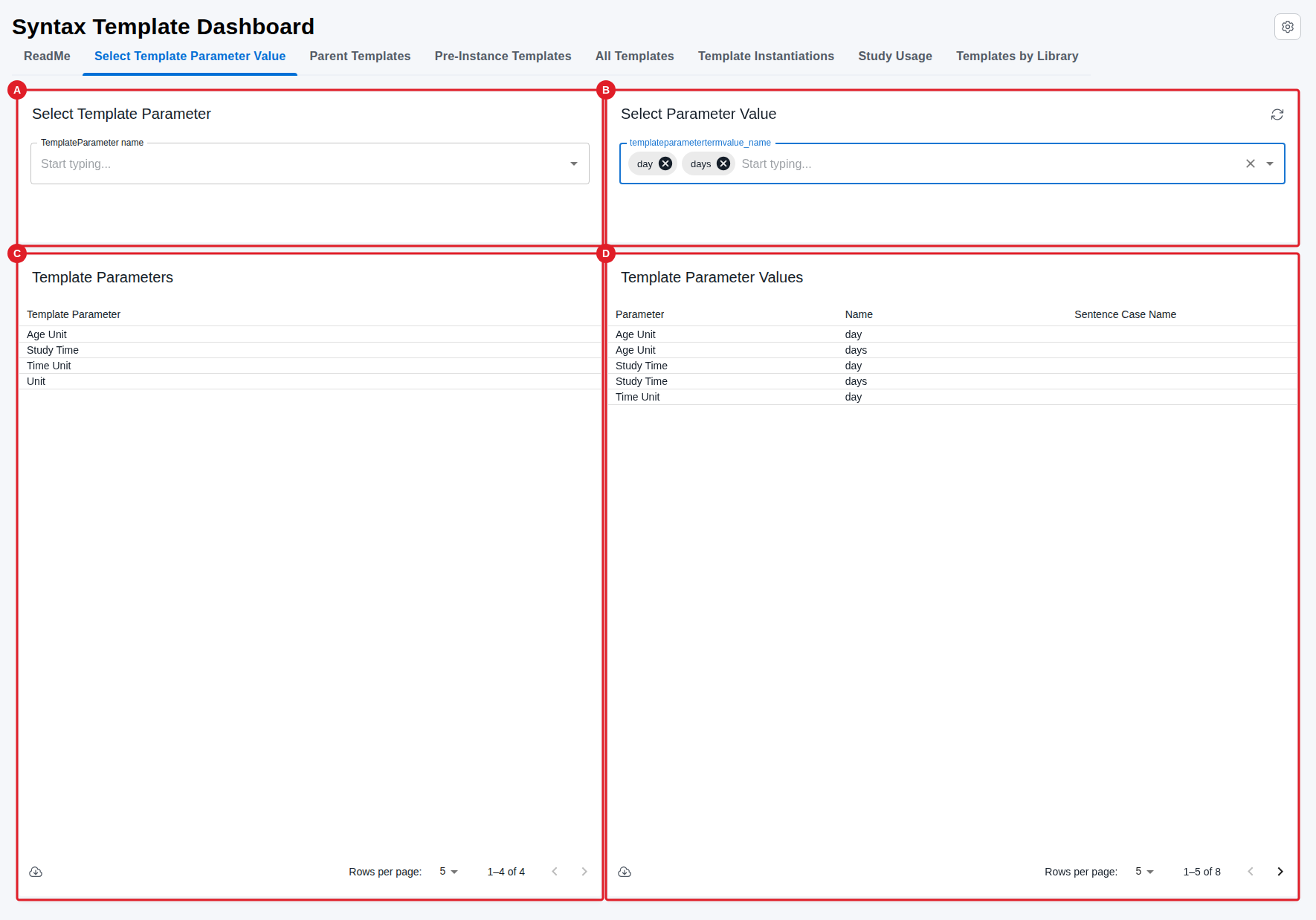
In this example the 'day' and 'days' is selected as template parameter values, the template parameters holding one of these are listed in the left report card.
NOTE
The selections of Template Parameters or Template Parameter Values from the two top report cards will be applied on all following tabs.
Parent Templates
Purpose: Lists all parent templates, including user-defined ones, filtered by the selected template parameters.
When to use: Use when you want to search parent syntax templates of any type in any library.
Show Quick Guide
- Open the Parent Templates tab.
- Search the list of parent templates (filtered by the selected template parameters).
- Filter by library to remove user-defined templates if needed.
On this tab you can search in all parent syntax templates of any type in any library. The display is filtered to parent syntax templates that refer to the template parameters selected on the Selected Template Parameter and/or Value card (A), shown in the Parent Syntax Templates Using Selected Template Parameter and/or Value table (B).
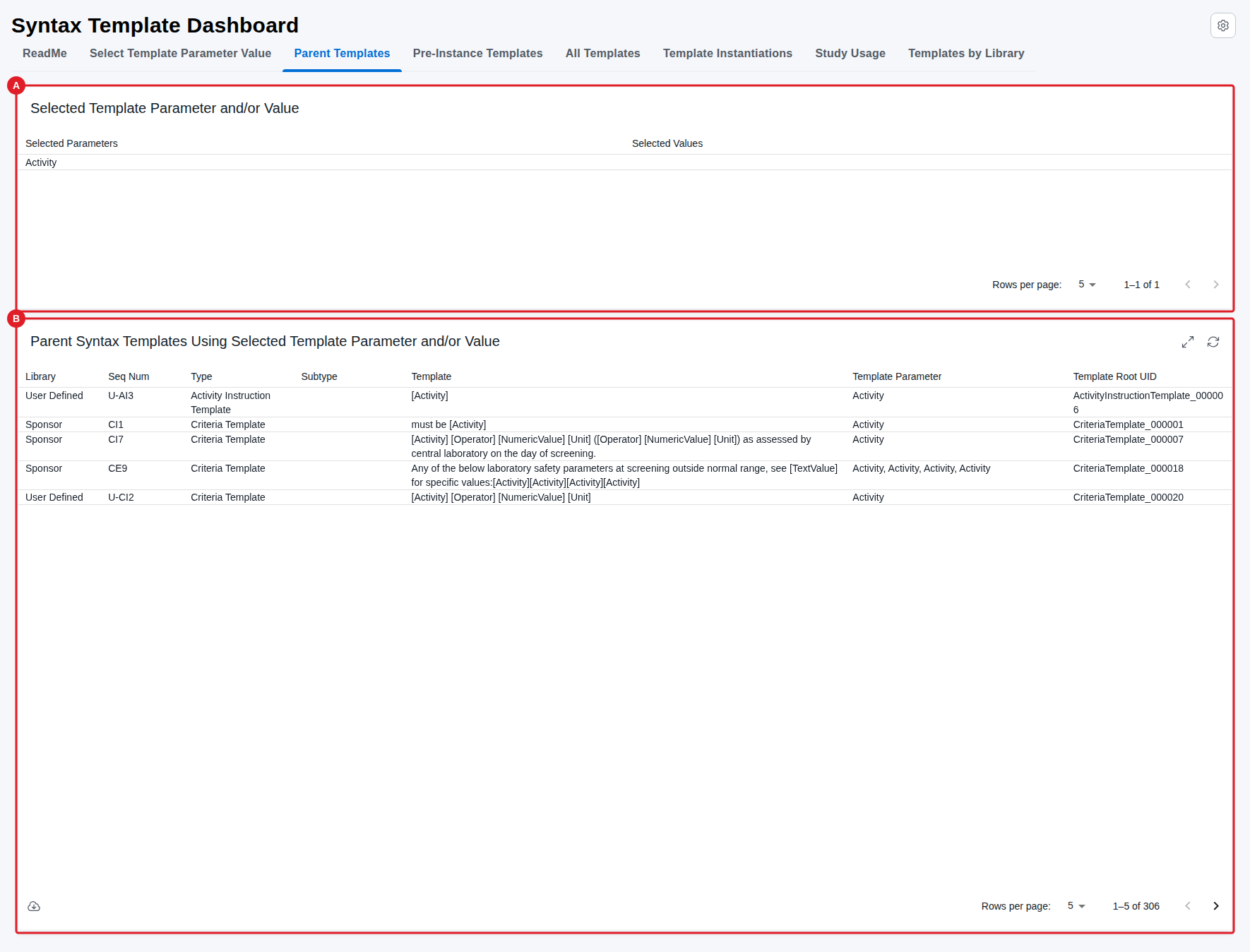
In this example the 'Activity' template parameter is selected, and (B) lists the parent syntax templates referring to it, across different types and libraries.
NOTE
A user defined syntax template is technically also a parent template and will show up on the list. These can be removed by additional filtering on the library.
Pre-instance Templates
Purpose: Lists pre-instance templates that support study search and selection, filtered by the selected template parameters and values.
When to use: Use when you want to search predefined templates that are not yet assigned to a specific study.
Show Quick Guide
- Open the Pre-instance Templates tab.
- Search the list of pre-instance templates (filtered by the selected template parameters and values).
On this tab you can search in all pre-instance syntax templates of any type in any library. The display is filtered to pre-instance syntax templates that refer to the template parameters and values selected on the Selected Template Parameter and/or Value card (A), shown in the Pre-instance Syntax Templates Using Selected Template Parameter and/or Value table (B).
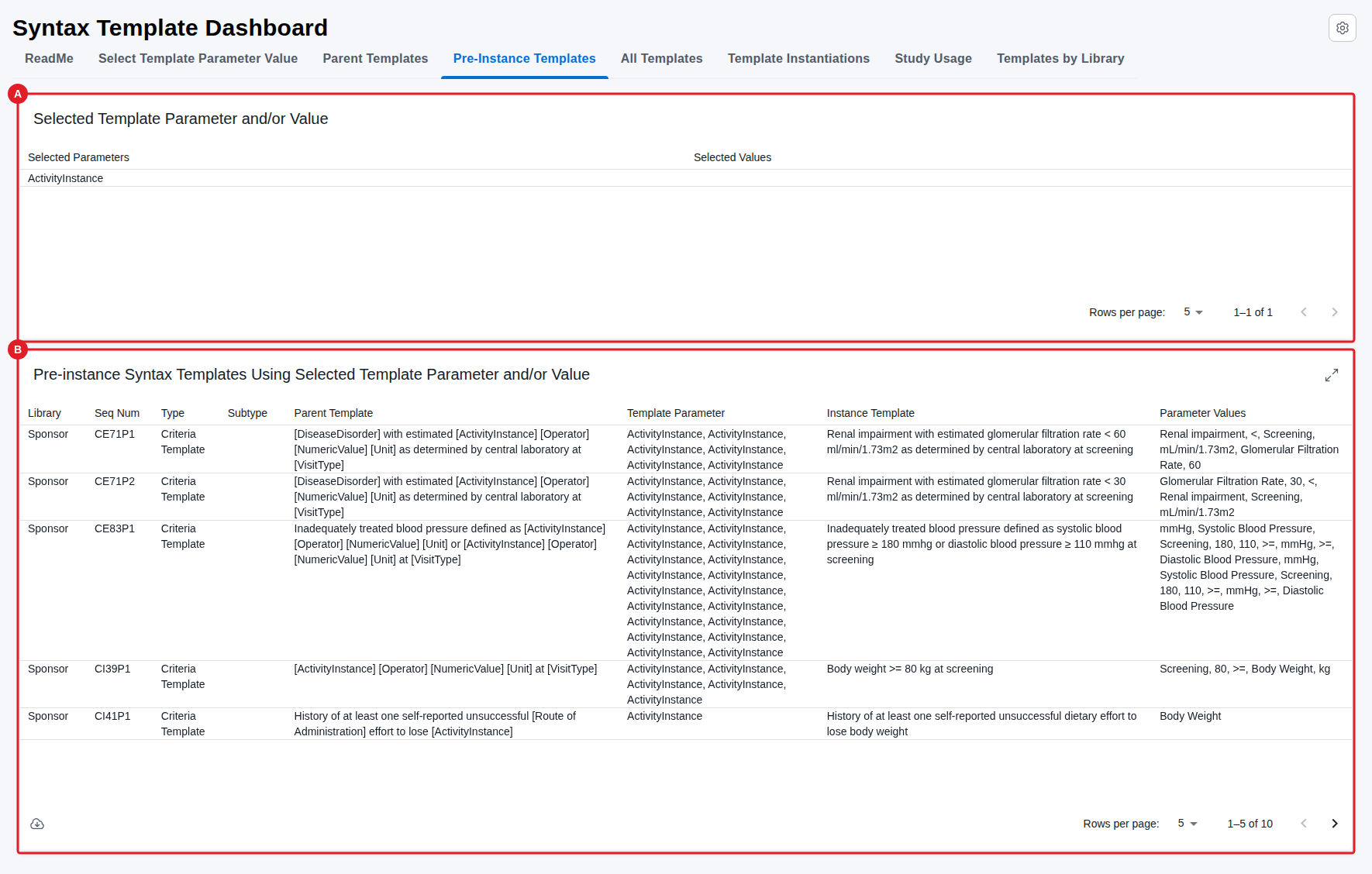
In this example the 'ActivityInstance' template parameter is selected, and (B) lists the pre-instance syntax templates referring to it.
NOTE
A pre-instance syntax template is made only to support selection of syntax templates with pre-selected values for template parameters.
All Templates
Purpose: Provides a joined listing of both parent and pre-instance syntax templates, filtered by the selected template parameters and values.
When to use: Use when you want a single search across both template types instead of checking them separately.
Show Quick Guide
- Open the All Templates tab.
- Search the joined listing of parent and pre-instance templates (filtered by the selected template parameters and values).
On this tab you can do a joined search in all parent and pre-instance syntax templates of any type in any library. The display is filtered to syntax templates that refer to the template parameters and values selected on the Selected Template Parameter and/or Value card (A), shown in the All Templates Using Selected Template Parameter and/or Value table (B).
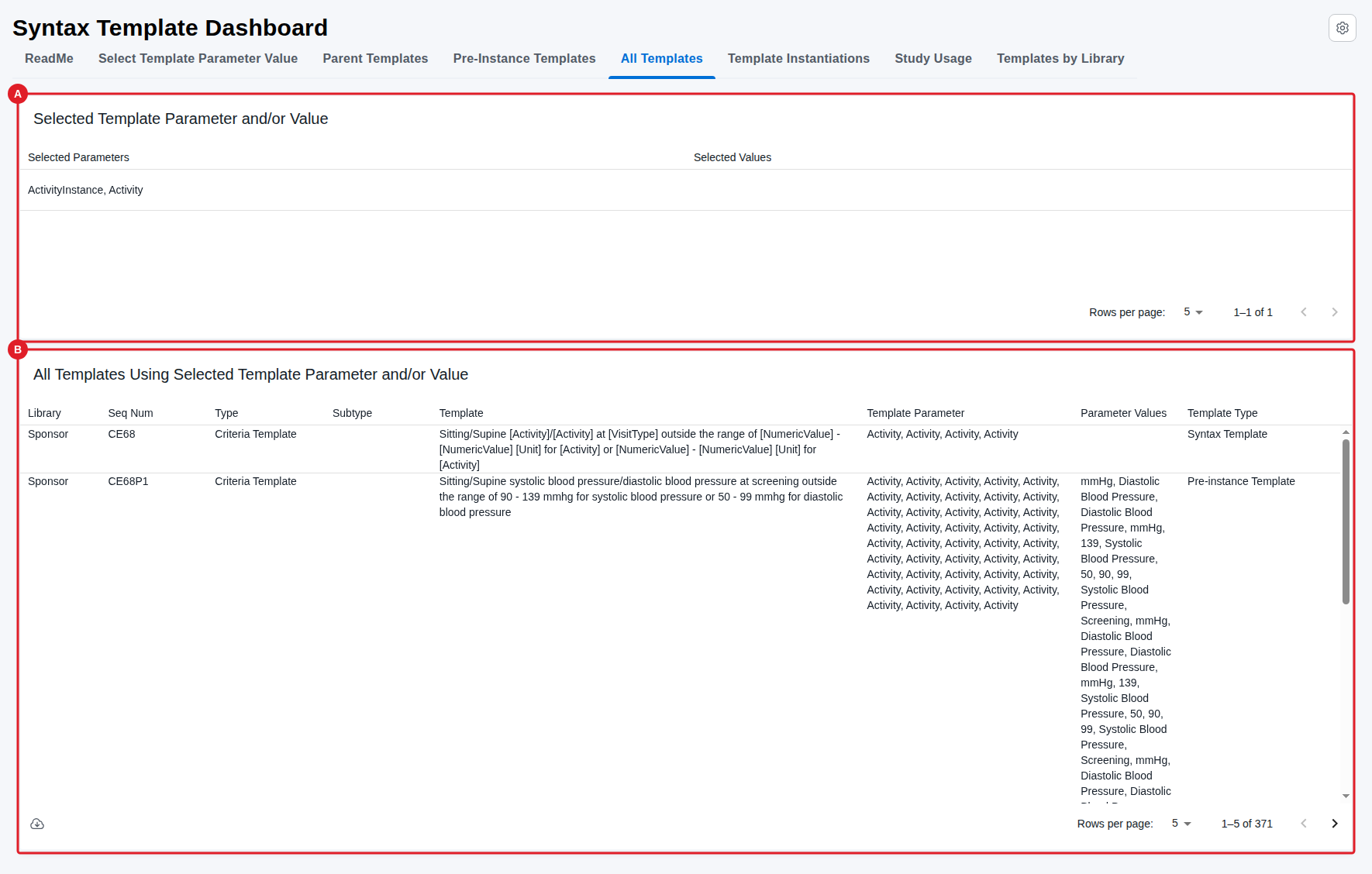
In this example both the 'Activity' and 'ActivityInstance' template parameters are selected, and (B) lists the syntax templates referring to either of these two parameters.
Template Instantiations
Purpose: Lists the syntax templates actually used on studies, showing their latest version.
When to use: Use when you want to see which template instantiations are currently in use, filtered by the selected template parameters and values.
Show Quick Guide
- Open the Template Instantiations tab.
- Search the instantiations (filtered by the selected template parameters and values).
- Filter by library to remove user-defined templates if needed.
On this tab you can search instantiations of syntax templates of any type in any library, i.e. a syntax template actually being used on a study. The display is filtered to instantiations that refer to the template parameters and values selected on the Selected Template Parameter and/or Value card (A), shown in the Template Instantiations Using Selected Template Parameter and/or Value table (B).
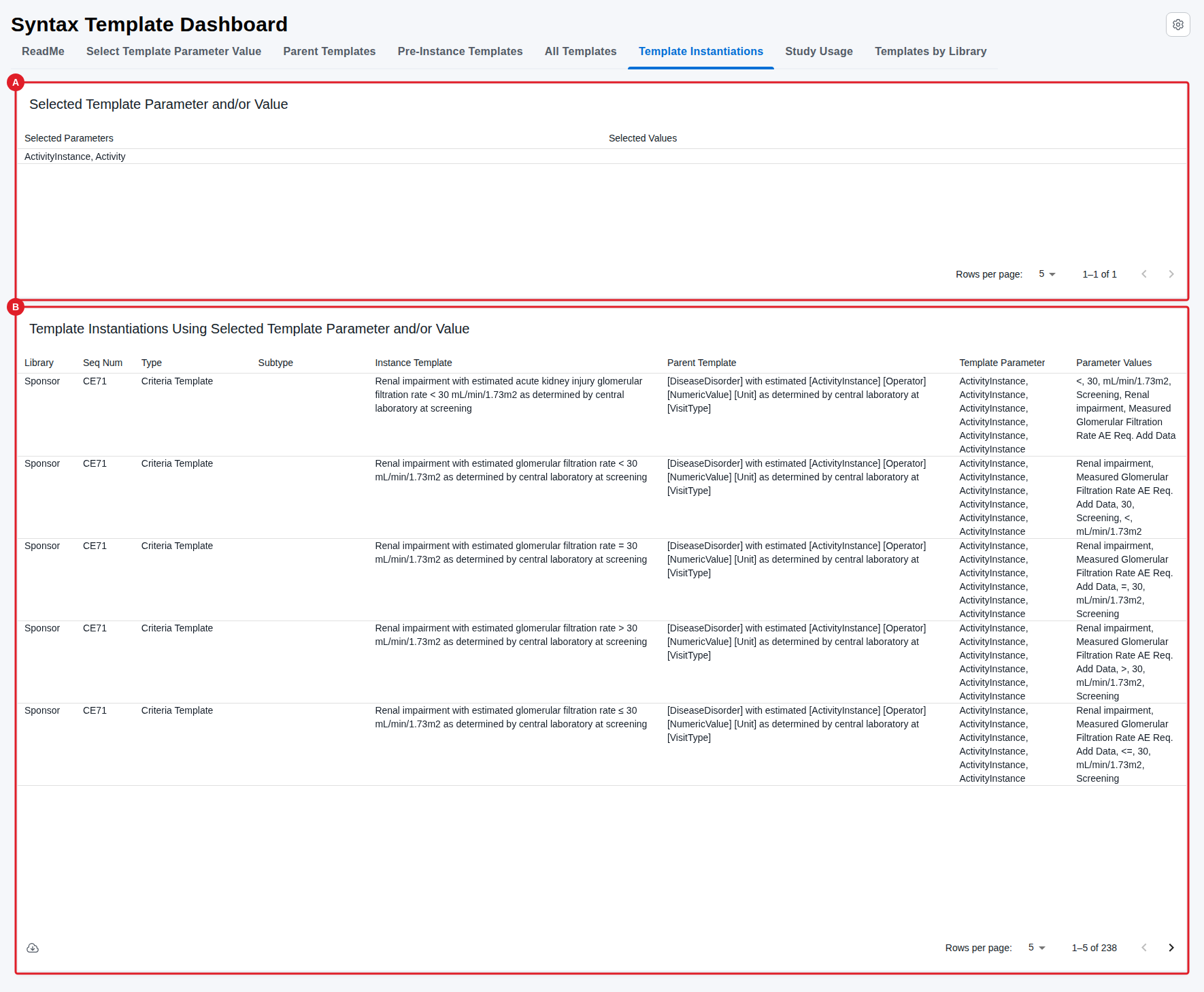
In this example both the 'Activity' and 'ActivityInstance' template parameters are selected, and (B) lists the syntax template instantiations referring to either of these two parameters.
NOTE
The list of template instantiations includes instantiations of user defined templates including their template parameter values. These can be removed by additional filtering on the library. The next tab lists details on the studies using these template instantiations.
Study Usage
Purpose: Shows which studies use the selected template instantiations.
When to use: Use when you want to trace template instantiations back to the studies using them.
Show Quick Guide
- Open the Study Usage tab.
- Review the studies using the syntax templates (filtered by the selected template parameters and values).
On this tab you can search study usage of syntax templates of any type in any library. The display is filtered to template instantiations that refer to the template parameters and values selected on the Selected Template Parameter and/or Value card (A), shown together with their study usage in the Template Instantiations by Study Usage table (B).
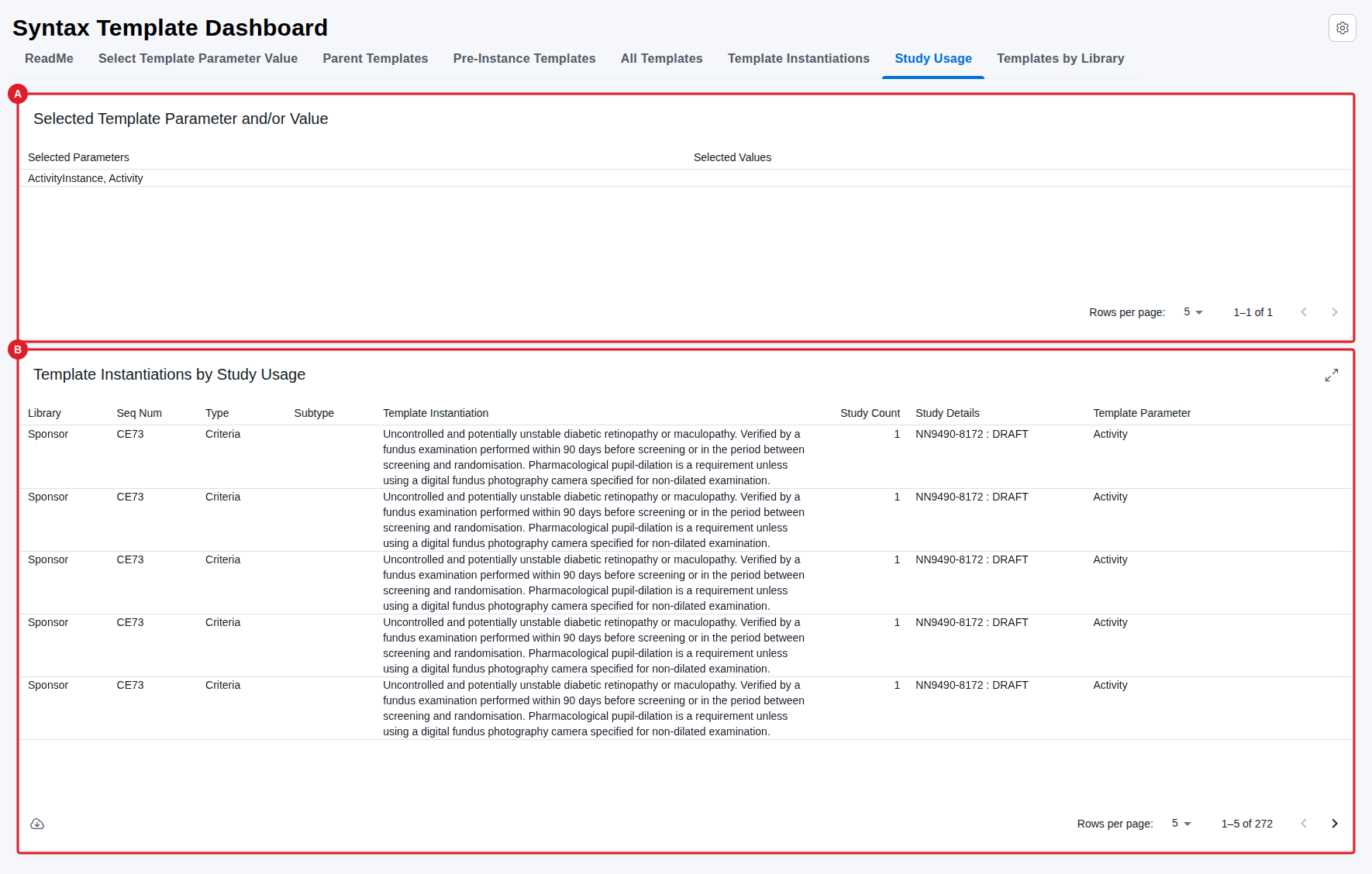
In this example both the 'Activity' and 'ActivityInstance' template parameters are selected, and (B) lists the studies using syntax template instantiations referring to either of these two parameters.
NOTE
The list of template instantiations includes instantiations of user defined templates including their template parameter values. These can be removed by additional filtering on the library. The previous tab lists more details for these template instantiations.
Templates by Library
Purpose: Gives a summary overview of template counts grouped by type and library.
When to use: Use when you want a high-level count of templates rather than a detailed list.
Show Quick Guide
- Open the Templates by Library tab.
- Read the bar chart of templates by type and library.
- Change the layout using the field selections below the chart.
On this tab you get an overview of all syntax templates in the system, grouped by type and library, shown in the Template Instantiations by Type and Library card (A). You can change the layout of the bar chart using the Category, Value, and Group field selections below the chart.
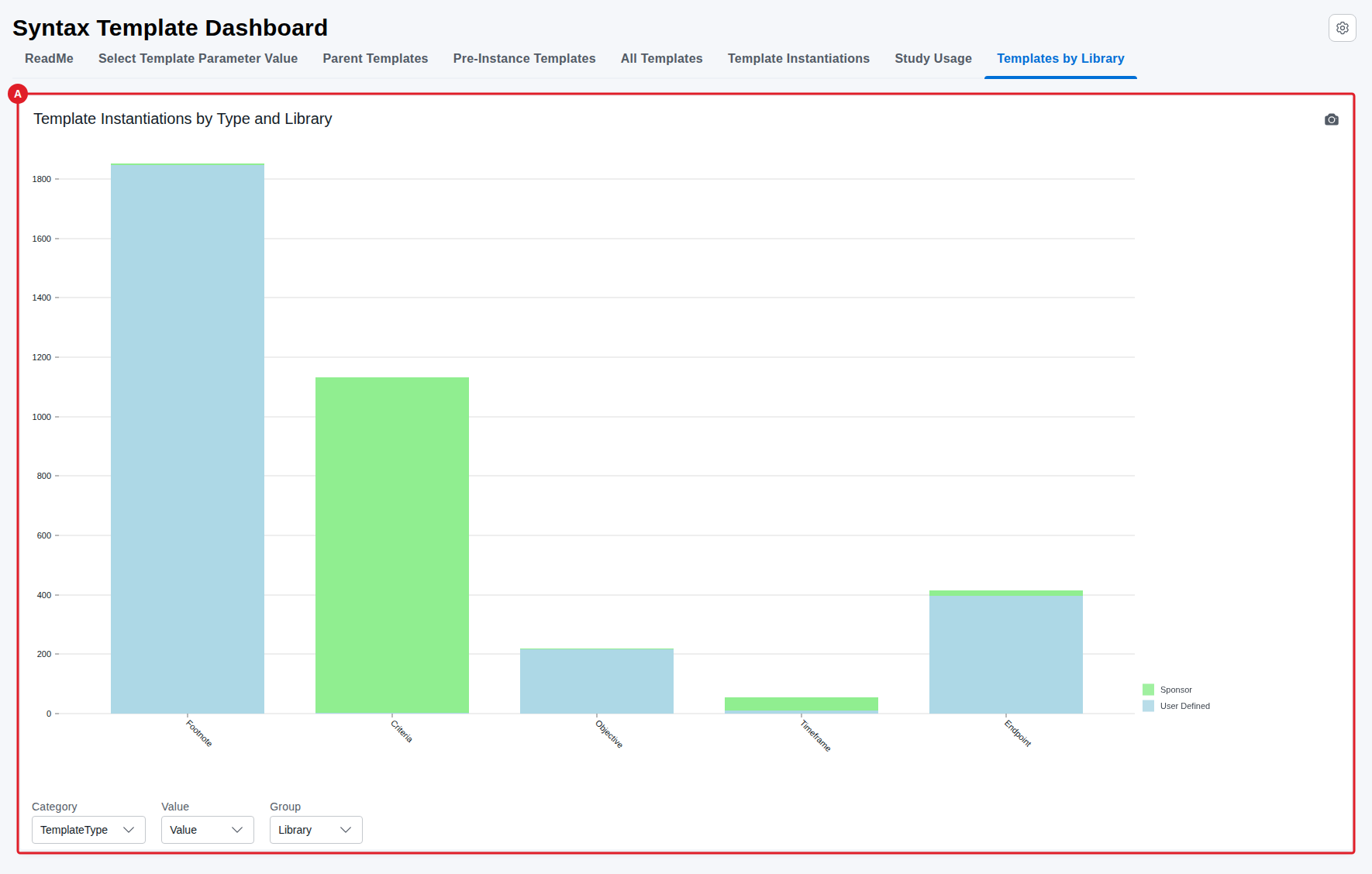
In this example (A) each bar represents a template type with colour coding by library.
Show Solution Architecture
The parameter/value selection on the first tab is propagated as a filter to all subsequent tabs. User-defined templates are stored as parent templates and can be excluded by filtering on the library. Pre-instance templates exist only to support selection and are never related to a study.
Common errors
| Symptom | Interpretation | Likely cause | Fix |
|---|---|---|---|
| User-defined templates clutter the list | Expected — not a data error | They are technically parent templates | Filter by library to exclude them |
| Later tabs show unexpected results | A carried-over selection, not a report fault | A parameter/value filter from tab 1 is still applied | Adjust or clear the selection on Select Template Parameter Value |
If this does not resolve the issue, contact your OpenStudyBuilder administrator.