
Appearance
Study Data Specifications
Where to find it: Studies → Define Study → Data Specifications.
Purpose
This page lets you see all study activities and link each one to its activity instance(s) — the coded specifications used for data collection, SDTM and ADaM. For each activity–instance link, you can also set the data supplier, and mark it as important or linked to a baseline visit. The page also lets you check how activities and instances line up against study visits in the Operational SoA view.
Concept & definitions
- Activity — an action, undertaking or event that is performed or observed during the study, according to the study protocol (e.g. a measurement like Body Weight, or a procedure like administration of study drug). Activities are what appear in the protocol SoA, grouped under an Activity Group and Activity Subgroup, and are selected for the study on the Study Activities page.
- Data Collection — an attribute of an activity, indicating whether it is expected to collect a value from the subject. Yes means the activity needs an activity instance for data collection, SDTM and ADaM. No is used for activities that don't collect data themselves, such as reminders, system operators / triggers — these may not need an activity instance.
NOTE
Reminders are activities that appear in the SoA purely as a prompt for site staff or subjects (e.g. "remind subject to fast before visit") — they don't produce a data value themselves. System operators / triggers are activities that mark when an operational or system process should happen (e.g. randomization, drug dispensing) rather than record an observation.
- Activity instance — a more detailed, coded specification of an activity, linked to it from the library. Where the activity is the general concept, the activity instance adds the specific codes (topic code, test name code, specimen, standard unit, ADaM param code) that data collection, SDTM and ADaM processing rely on.
- Data Supplier / Origin Type / Origin Source — attributes describing who supplies the data for an activity instance and how its values originate.
- Important flag — an attribute that can be set on an activity–activity instance pair to mark it as important, e.g. for downstream review or reporting purposes.
- Baseline flag — an attribute that can be set on an activity–activity instance pair to link it to one or more baseline visits, marking that instance as part of the baseline assessment for the study.
When to use
Use this page once study activities have been selected on the Study Activities page, to finish specifying them for downstream use: link each activity to the activity instance(s), data supplier, and importance/baseline attributes it needs for data collection, SDTM and ADaM. Then use the Operational SoA tab to verify that specification against the study's visits, keeping protocol and data-standard specifications consistent end-to-end, from study design through to submission.
Page tabs
The page is organised in two tabs.
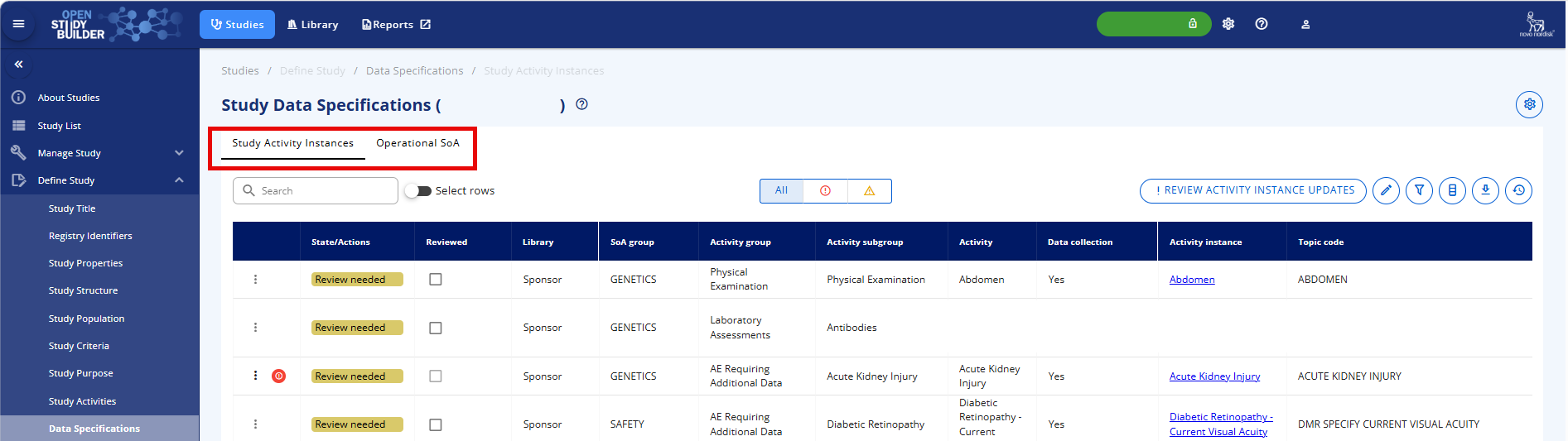
| Tab | Use it to… |
|---|---|
| Study Activity Instances | Review and edit which activity instance(s) each study activity is linked to, and set importance, baseline and data-supplier attributes. |
| Operational SoA | See a combined, read-only view of activities, their instances, and the visits/epochs they are scheduled at — for QC of the protocol, CRF, SDTM and ADaM. |
Study Activity Instances
Purpose: Give each study activity the coded activity instance(s) it needs for data collection, SDTM and ADaM, and capture the metadata — data supplier, origin, importance and baseline — that downstream processing relies on.
When to use: Work through this tab once activities have been selected on the Study Activities page, before data collection setup begins, and revisit it whenever an activity changes, a new instance version is published, or a data supplier is added.
Table content
When you open this tab, you see a table containing all study activities, related instances, and attached attributes. The table has the following column headers:
| Header | Short explanation |
|---|---|
| State/Action | This column indicates the current status of an activity or activity instance, or the action required. Possible states/actions are: Review not needed, Review needed, Reviewed, Add instance, Remove instance, Not applicable |
| Library | Will usually be 'Sponsor' |
| SoA Group | The selected SoA group from the Study Activity |
| Activity Group | The Activity Group, that the selected study activity belongs to, e.g. AE Requiring Additional Data |
| Activity Subgroup | The Activity Subgroup, that the selected study activity belongs to, e.g. Laboratory assessment |
| Activity | The Study Activity in the study, e.g. Albumin |
| Data Collection | Yes or No. No will only be used for reminders or system operators or triggers |
| Activity Instance | The name of the Activity Instance, e.g. Albumin Urine |
| Topic Code | Code used to convert collected data to SDTM, e.g. ALBUMIN_N_URINE |
| Test name code | Displays the test name code item linked to the activity instance |
| Specimen | Displays the specimen activity item linked to the activity instance |
| Standard unit | Displays the standard unit item linked to the activity instance |
| ADaM param Code | The code used in ADaM e.g. ALBU |
| Important | An activity–activity instance pair can be marked as Important by editing the Activity–Instance relationship or by switching the table to edit mode. |
| Baseline visits | Link an activity–activity instance pair to baseline visits by editing the Activity–Instance relationship or by switching the table to edit mode. |
| Data Supplier | Link an activity–activity instance pair to a Data Supplier by editing the Activity–Instance relationship or by switching the table to edit mode. |
| Origin Type | The Origin Type for an activity–activity instance is prefilled with the default value linked to a specific Data Supplier in the library. Change it by editing the Activity–Instance relationship or switching the table to edit mode. |
| Origin Source | The Origin Source for an activity–activity instance is prefilled with the default value linked to a specific Data Supplier in the library. Change it by editing the Activity–Instance relationship or switching the table to edit mode. |
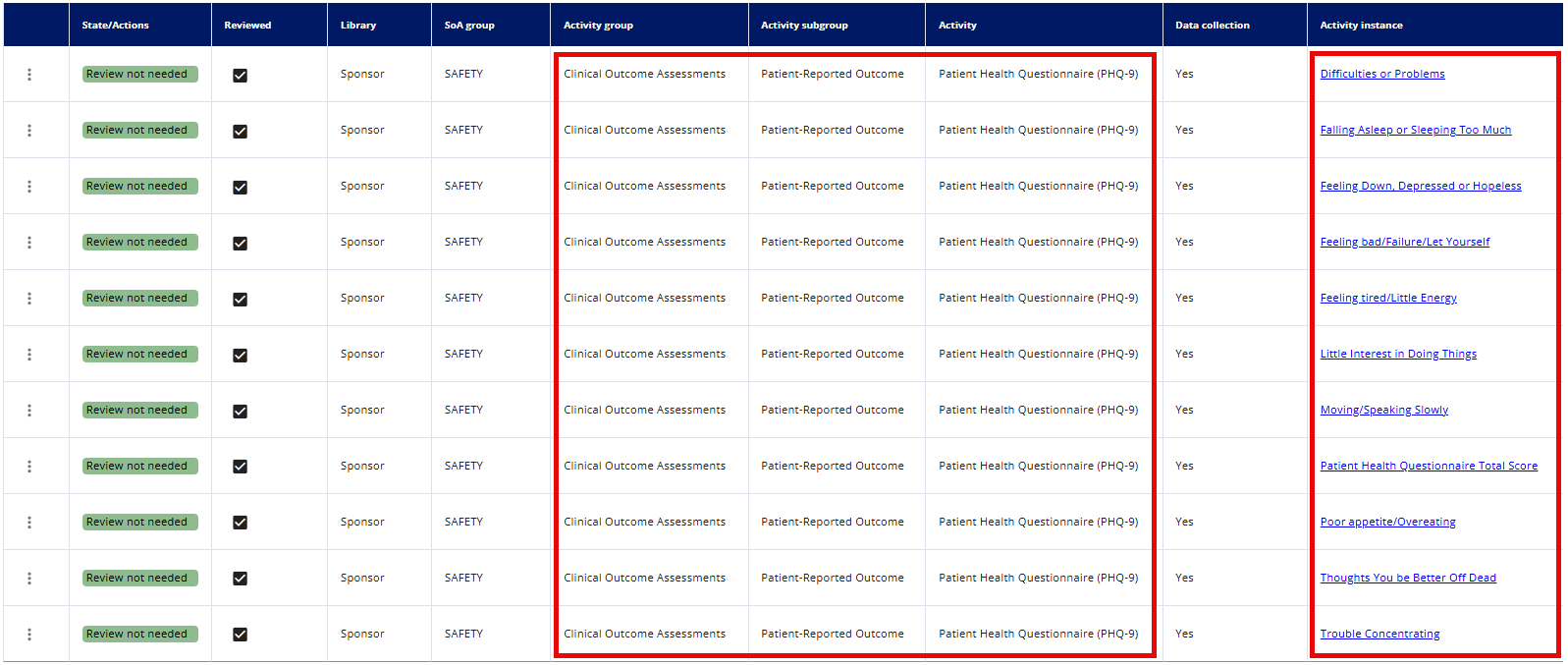
There is one row per activity-instance relation. If an activity has more than one required activity instance related, then one row will be available for each activity instance related to the activity. This means that some activities, such as the Patient Health Questionnaire (PHQ-9), will appear in multiple rows because a single activity may contain several questions (activity instances).
NOTE
Currently you cannot request new activity instances from inside OpenStudyBuilder. If needed, this must go through the study Standards Developer.
Show Quick Guide
Selecting, changing or removing an activity instance
Open the row's ellipsis menu (⋮) for the activity you want to work on, and select Edit Activity‑Instance relationship.
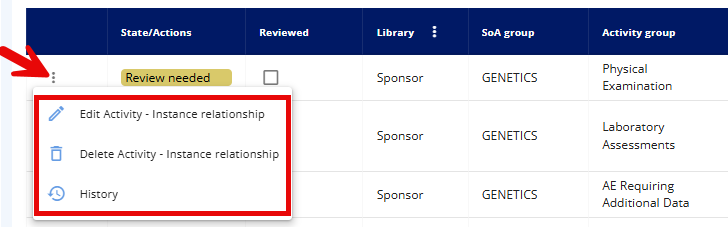
To link or change the activity instance, pick one from the Activity Instance dropdown — only instances available for that activity are listed. Select Save to apply.
To remove the pair instead, open the same ellipsis menu and select Delete Activity‑Instance relationship. Confirm in the warning dialog to complete the removal.
To see past changes, open the same ellipsis menu and select History — the history of the activity–activity instance relationship is then displayed.
State/Action and Reviewed columns
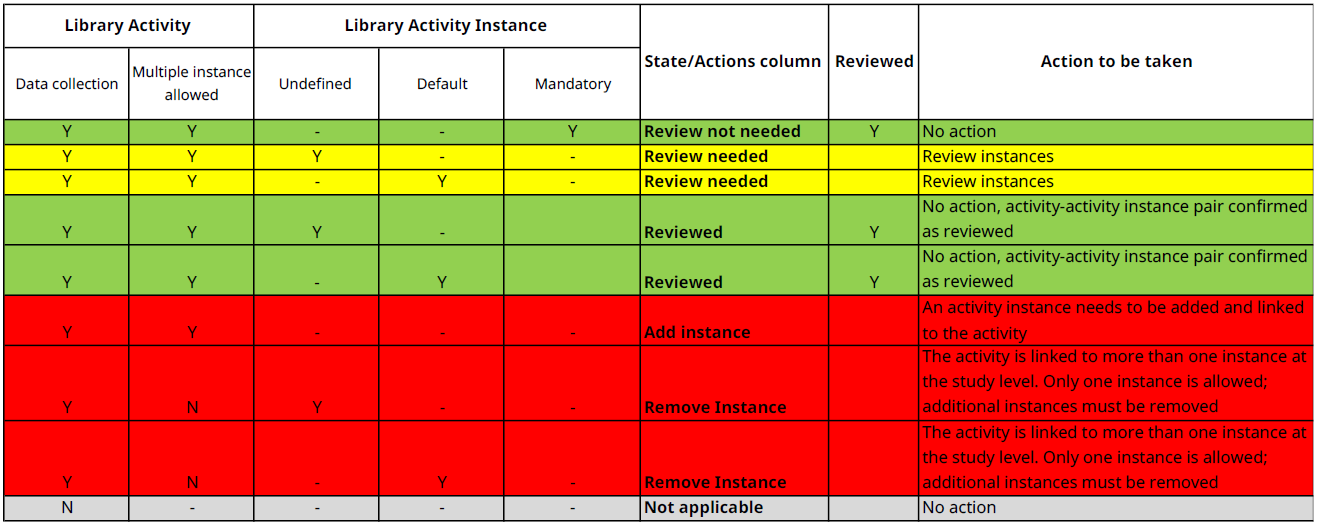
| Color | State/Action | Meaning |
|---|---|---|
| Review not needed | Requires no action from the user | |
| Review needed | Requires attention from the user; user must verify that the activity–activity instance pair satisfies the study requirements | |
| Reviewed | No additional action is required by the user, as the activity–activity instance pair has been confirmed as reviewed | |
| Add instance | Requires action from the user; the activity is expected to be linked with an activity instance | |
| Remove instance | Requires user action; the activity may only be linked to a single instance at the study level but is currently linked to multiple instances | |
| Not applicable | Requires no action from the user; the activity is not expected to be linked with an activity instance |
Independent of the state or actions, it is advisable to check all content for a study to make sure that all needs are covered.
Most activity-instance relations are auto-selected and auto-published by basic rules:
Show Quick Guide
To review activity-activity instance pairs and mark them as reviewed
Click the Review needed or Add instance state for that row to open the Edit Activity–Instance relationship form. You can also use the ellipsis menu (⋮) for the row.
Make sure the correct activity instance is selected, then click the “SAVE AS REVIEWED” button.
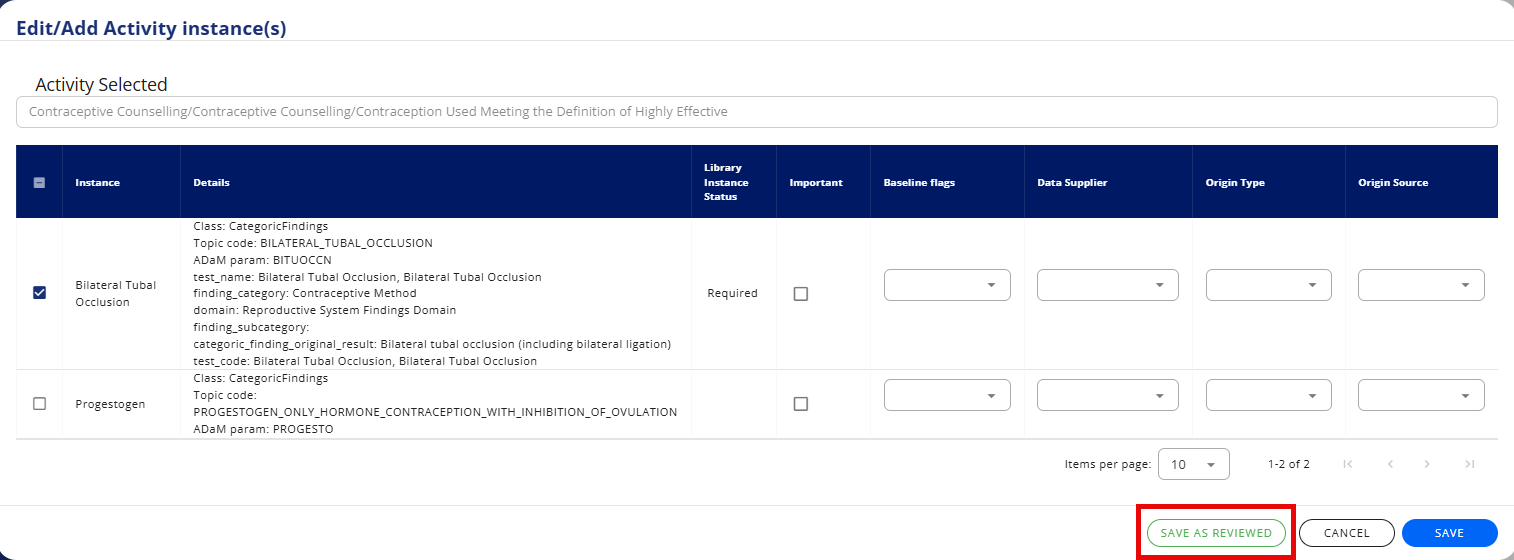
Alternatively, once you've verified that the activity–activity instance pair meets the study's requirements, tick the Reviewed checkbox directly in the table.

NOTE
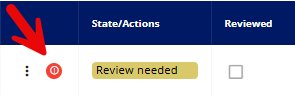
The Reviewed checkbox cannot be selected while the row is in the Add instance, Remove instance, or Not applicable state. It also cannot be selected when a newer activity instance version becomes available (red exclamation mark) until you decide whether to update to it or keep the current version.
Updating to a New Activity Instance Version
When the activity instance linked to a study activity is superseded by a newer version in the library, the row is flagged with a red exclamation mark. This lets you compare what is currently selected at study level against what is now available at library level, and decide whether to update.
Until you decide whether to update or keep the current version, the row's Reviewed checkbox cannot be selected, while the row is marked with a red exclamation mark icon and the Action/status is Review needed.
Show Quick Guide
Updating an activity instance to its newest library version
Above the table, use the All / red exclamation mark / yellow exclamation mark toggle to filter rows: All shows every row, the red exclamation mark filters to rows with a pending update decision, and the yellow exclamation mark filters to rows where you previously chose to keep the current version.

Open the row's ellipsis menu (⋮) for the flagged activity instance, and select Update Instance to new version.
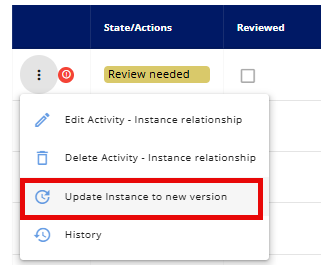
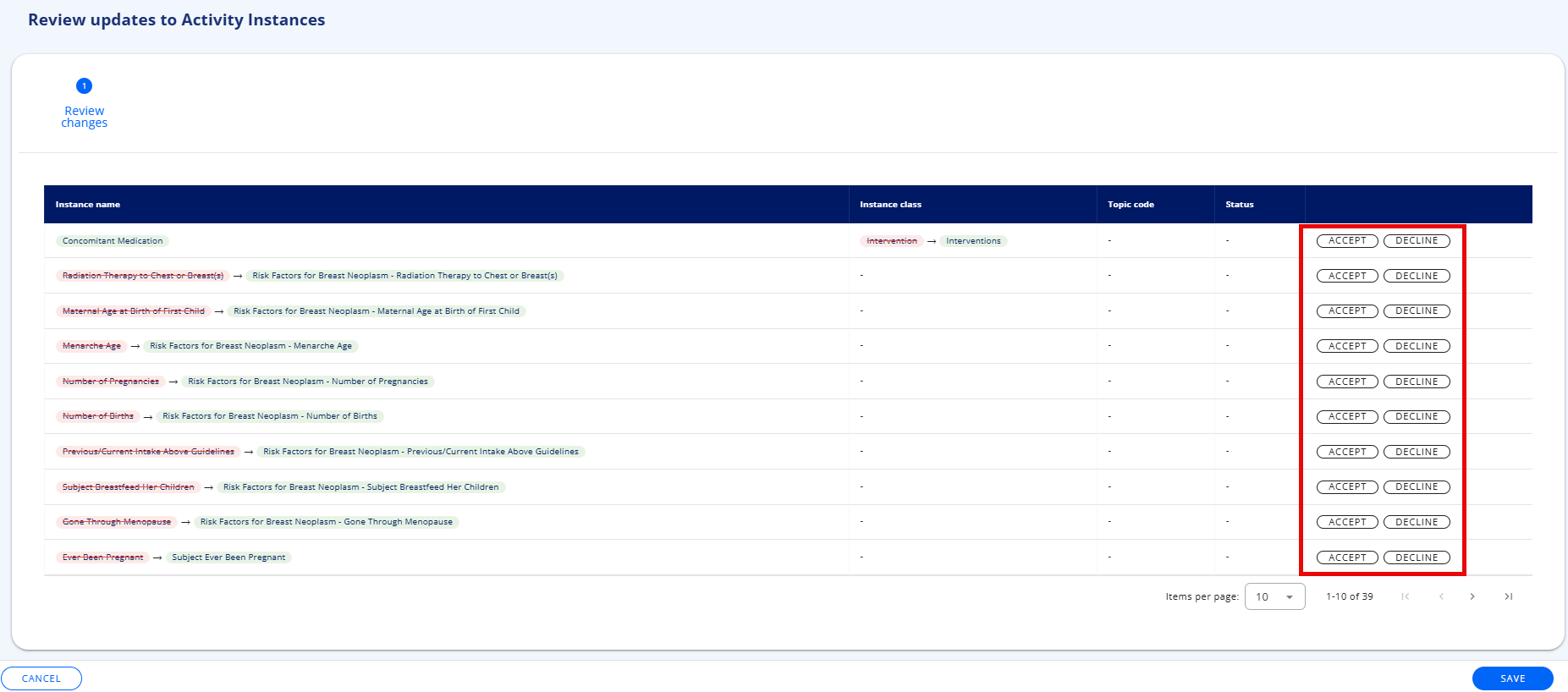
A form opens showing what would change. Choose Accept to update the row to the newest library version, or Decline and keep to keep the current version and mark the row as reviewed.
Alternatively, to review all pending updates at once, click the Review activity instance updates button above the table. This opens a form listing every flagged activity instance, letting you decide on each one without opening the row's ellipsis menu individually.

Study Data Supplier, Origin Source and Origin Type
Data suppliers must first be defined on the Study Data Supplier page (under Manage Study). If no suppliers are defined at the study level, 'No data available' will be displayed in the Data Supplier dropdown on the Study Activity Instances page. Data suppliers are usually linked with a default Origin Type and Origin Source. Selecting a supplier on the Study Activity Instances page populates Origin Type and Origin Source with the supplier's defaults, however, these can be changed manually.
In the tables below, you can find short descriptions of origin types and sources.
| Origin Type | Short definition |
|---|---|
| Assigned Value | Data that is either: Determined by individual judgment as provided by an evaluator, or Coded terms supplied as part of a coding process, or Values set independently of any subject-related data value in order to complete a dataset. |
| Collected value | A value that is actually observed and recorded by a person or obtained by an instrument. Note that a collected entry translated to a synonymous controlled term still has a type Collected. |
| Copied value | A field populated by copying a variable from another dataset. |
| Derived value | A value that is calculated by an algorithm or reproducible rule, and which is dependent upon other data values, including data values available within the dataset or externally provided data values. MethodDef must be used to document the algorithm or rule used for a derived value. |
| Protocol value | Data that is defined as part of the study protocol, investigator instructions, standard operating procedures or trial design preparation. |
| Not available | Used when the origin is not available and cannot be determined. Sponsors should specify additional details that may be helpful to the reviewer in the Comments section of the data definition file. |
| Other | Other |
| Origin Source | Short definition |
|---|---|
| Clinical Study Sponsor | Clinical data that were actually observed or recorded by study Sponor. |
| Investigator | Clinical data that were actually observed or recorded by Investigator. |
| Study Subject | Clinical data that were actually observed or recorded by Study Subject. |
| Vendor | Clinical data that were actually observed or recorded by Vendor. |
Show Quick Guide
Setting a Data Supplier, Origin Type and Origin Source
- Open the row's ellipsis menu (⋮) for the activity you want to work on, and select Edit Activity‑Instance relationship. You can also switch the table to edit mode using the pencil icon at the top right above the table.
- Select a Data Supplier from the dropdown — only suppliers already defined on the Study Data Supplier page (under Manage Study) are available.
- Origin Type and Origin Source are pre-filled with the selected supplier's defaults. Change either one manually if the default does not apply.
- Select Save to apply.
Operational SoA
Purpose: See a combined, read-only view of the Study Activities, detailed SoA, and Activity Instances tabs — for QC of the protocol, CRF, SDTM and ADaM.
When to use: Use for QC of the Protocol (similar to the Protocol Metadata Document, PMD), CRF content, SDTM and ADaM generation, and for providing information to vendors.
Show Quick Guide
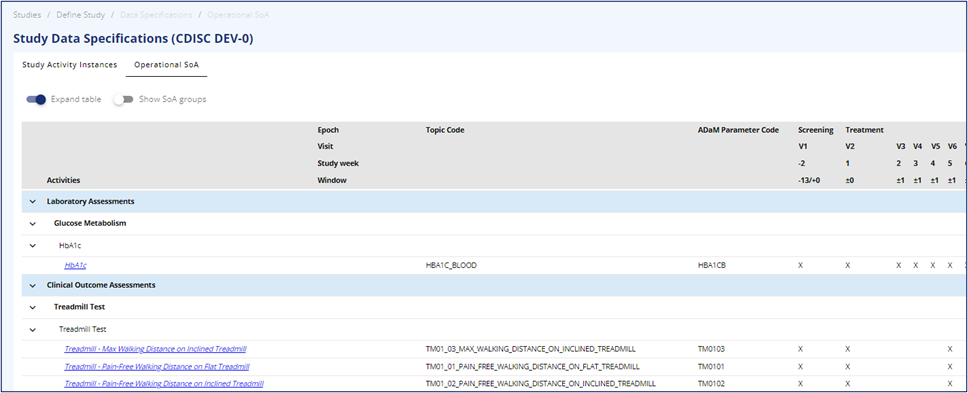
The table contains all the information from the Study Activities tab, the detailed SoA tab and the Activity Instances tab.
In this table, there is no option to add, edit, or delete information, besides normal page actions and view options. It is possible to download the table in different formats in the upper right corner.
The top rows of the table display the visit scheduling information, including epochs, visits, visit window, and timing towards the global anchor (baseline).
The selected preferred time unit will also be visible in the grey area above the table content. The left-hand column displays the hierarchy for the activities, starting with the SoA group (if turned on), Activity Group, Activity subgroup, Activity, and Activity Instance. The legends of the levels are currently not implemented.
There is a fold-out option with expand or collapse all, and the option to expand within the groupings. On the activity instance level, the Topic Code and ADaM Parameter Code are visible. The activity instances carry a hyperlink to access additional instance information in the library.
Common errors
| Symptom | Interpretation | Likely cause | Fix |
|---|---|---|---|
| Activity shows red "Add instance" | Expected — data collection cannot proceed without one | The activity has no activity instance linked yet | Link an instance via the row's ellipsis menu → Edit Activity-Instance relationship |
| Activity shows red "Remove instance" | Expected — the activity only allows one instance at study level | More than one activity instance is linked to an activity that permits only one | Delete the unwanted activity–instance pair via the ellipsis menu |
| Reviewed checkbox cannot be ticked, or reverts to "Review needed" | Expected — not a defect | Row is in "Add instance" or "Not applicable" state, where the checkbox cannot be set, or it was cleared | Resolve the underlying state first (link an instance, or leave as Not applicable) |
| Data Supplier dropdown shows "No data available" | Expected — no suppliers exist yet at study level | No Data Supplier has been defined on the Study Data Supplier page | Define at least one supplier on the Study Data Supplier page (Manage Study), then return here |
| "Update Instance to new version" is unavailable | Expected — nothing to update | No newer version of the linked activity instance exists in the library | No action needed until the library publishes a new version |
If this does not resolve the issue, contact your OpenStudyBuilder administrator.