
Appearance
Laboratory Data Specification
Where to find it: Reports button → NeoDash → "Laboratory Data Specification" in the Report navigation panel.
Purpose
Help create a Laboratory Data Specification document that facilitates delivery of data from a supplier, by describing the required data file structure and content.
Concept & definitions
- Lab specification version — the version selected on the landing tab that drives the structure and column names of all other tabs.
- LAB / PK / AB content — the three assessment groupings the report splits laboratory data into.
- AB — Antibody; the assessment group shown on the AB Content tab. LAB Content excludes it (along with PK/PD) to avoid duplicating those assessments.
IMPORTANT
Prerequisites: an activity only appears on the Visit tab and the LAB/PK/AB Content tabs if both of the following are true at study level:
- it has an Activity Instance selected for the activity, and
- it is scheduled (ticked) at a visit in the SoA — an activity that exists on the study but has no tick mark at any visit has no visit to attach to.
Either gap is silent — the activity is simply omitted from the table, with no error shown. Set both up on the Study Activities page before expecting the assessment to appear here.
When to use
Use when preparing a Laboratory Data Specification for a study, to export visit and assessment data for the supplier template.
Report tabs
The report is organised in different tabs, each supporting a different purpose. To open the report, see Open NeoDash on the section landing page.
| Tab | Use it to… |
|---|---|
| Lab Data Spec Metadata | Select a lab specification version and study — this drives the structure and column names of the other tabs. Start here. |
| Visit | Display and export the LAB/PK/AB visits for the study. |
| LAB Content | Refine and export the study lab assessment data (excluding PK/PD and AB). |
| PK Content | Refine and export the study PK (Pharmacokinetic) and PD (Pharmacodynamic) assessment data. |
| AB Content | Refine and export the study antibody assessment data. |
Lab Data Spec Metadata
Purpose: Select the lab specification version and study that drive the structure and column names of the other tabs.
When to use: Use when starting a new Laboratory Data Specification, before working with any other tab.
Show Quick Guide
- Select a lab specification version in Select lab specification version (required) (A) — this defines the structure and column names of the other tabs.
- Click the SELECT button in Select Study (required) (B) to choose the study. If the list is too long, narrow it first with Search for a Project (D) or Search for a Study (E).
- See Instructions (C) for a summary of how to use the report.
This tab is the landing page for the report. 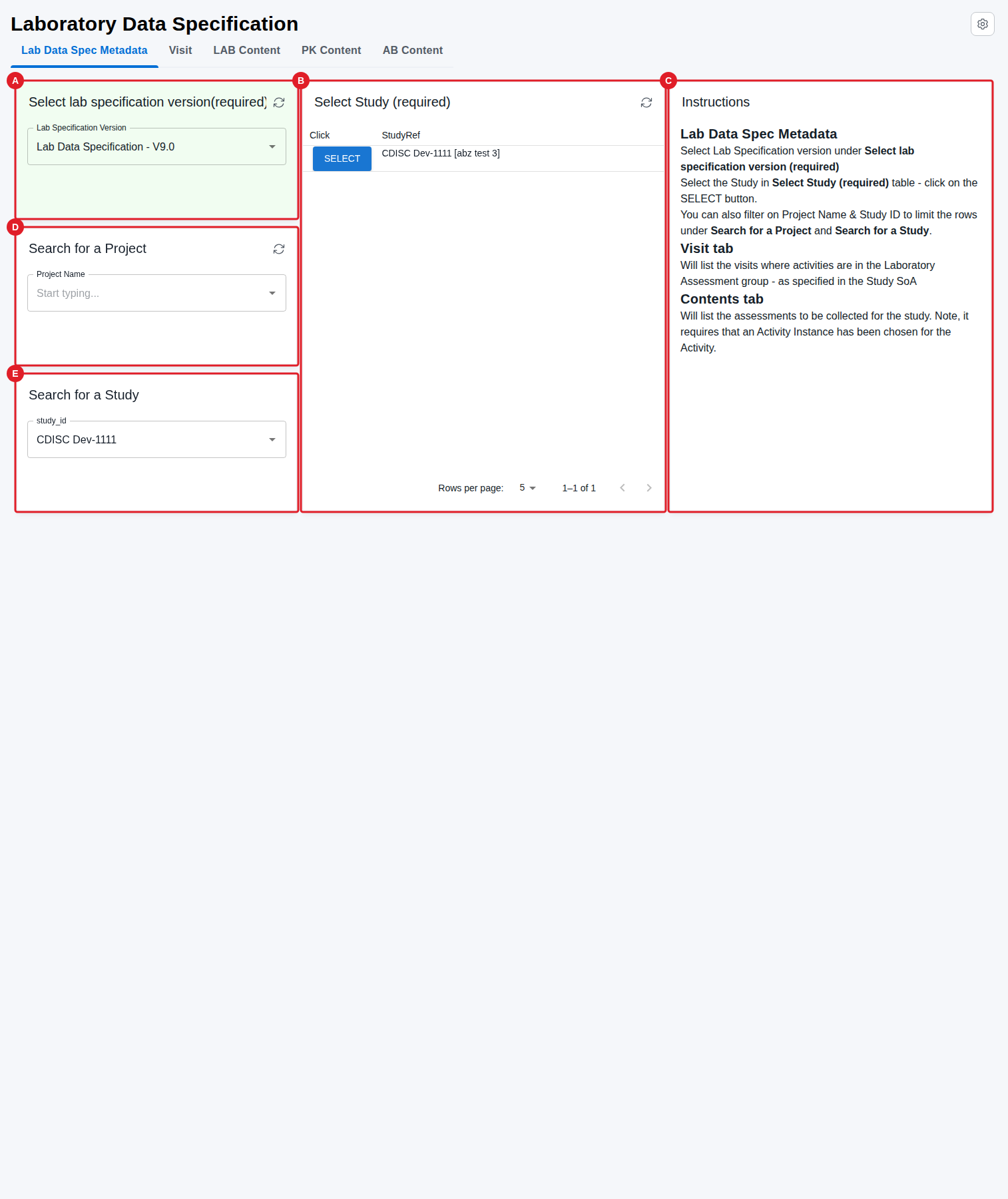
Visit
Purpose: Displays and exports the LAB, PK, or AB visits for the study.
When to use: Use when you need the visit list to paste into the Visits tab of the template document.
Show Quick Guide
- Select which visits to display — LAB, PK, or AB — in Select Spec Type (C).
- If needed, include UNSCHEDULED and/or NON-VISIT via Include non-scheduled visit types (D) for samples collected outside regular visits.
- Export the visit table to
.csv(F) and paste into the Visits tab of the template.
The main table (A) lists the visits for the selected study once a Spec Type is chosen (C): LAB, PK, or AB. These are visits linked to activity–activity instance pairs for LAB, PK, or AB assessments as defined at the study level on the Data Specification page. See the Reminder card (B) — rows per page default to 5 in all reports; change that value to display more visits. The Types of visits card (E) explains when UNSCHEDULED and NON-VISIT should be used. 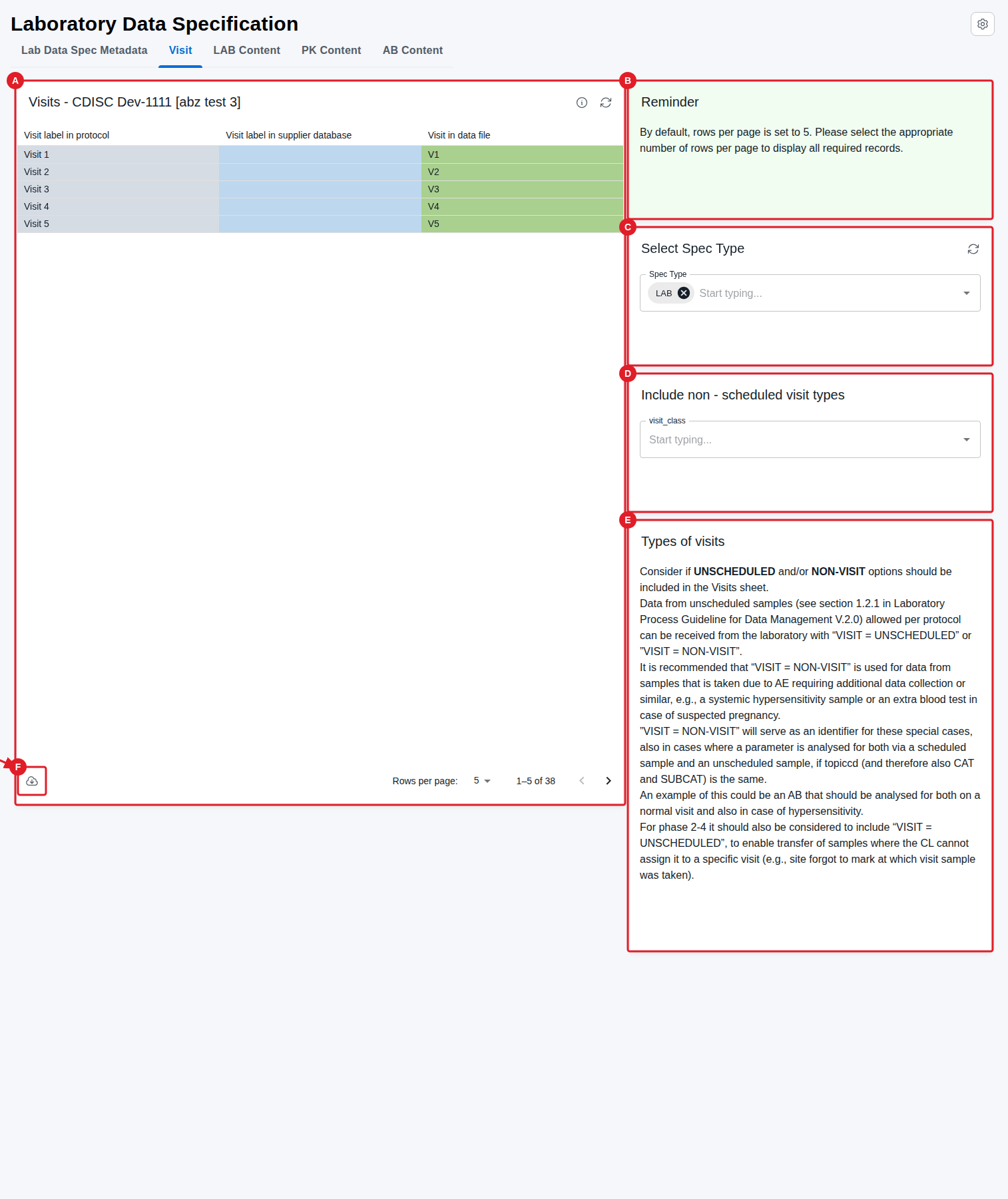
LAB Content
Purpose: Refines and exports the study lab assessment data, excluding PK/PD and AB.
When to use: Use when finalising the lab assessment data set for the supplier template.
Show Quick Guide
- Review the upper table (A) of all study lab assessments (except PK/PD and AB).
- Remove unwanted assessments in Select assessments to REMOVE (C); the final data set appears in the lower table (E).
- Export the final data set to
.csv(F).
This page contains two tables. Two columns in the upper table — Standard unit and Units in units dimension [CDISC submission value] (B) — are highlighted and are additional to the columns in the Laboratory Data Specification template; they help determine, based on vendor-provided input, whether selected study instances are correct. The Removed Activity Instance card (D) shows which topic codes were removed via (C). 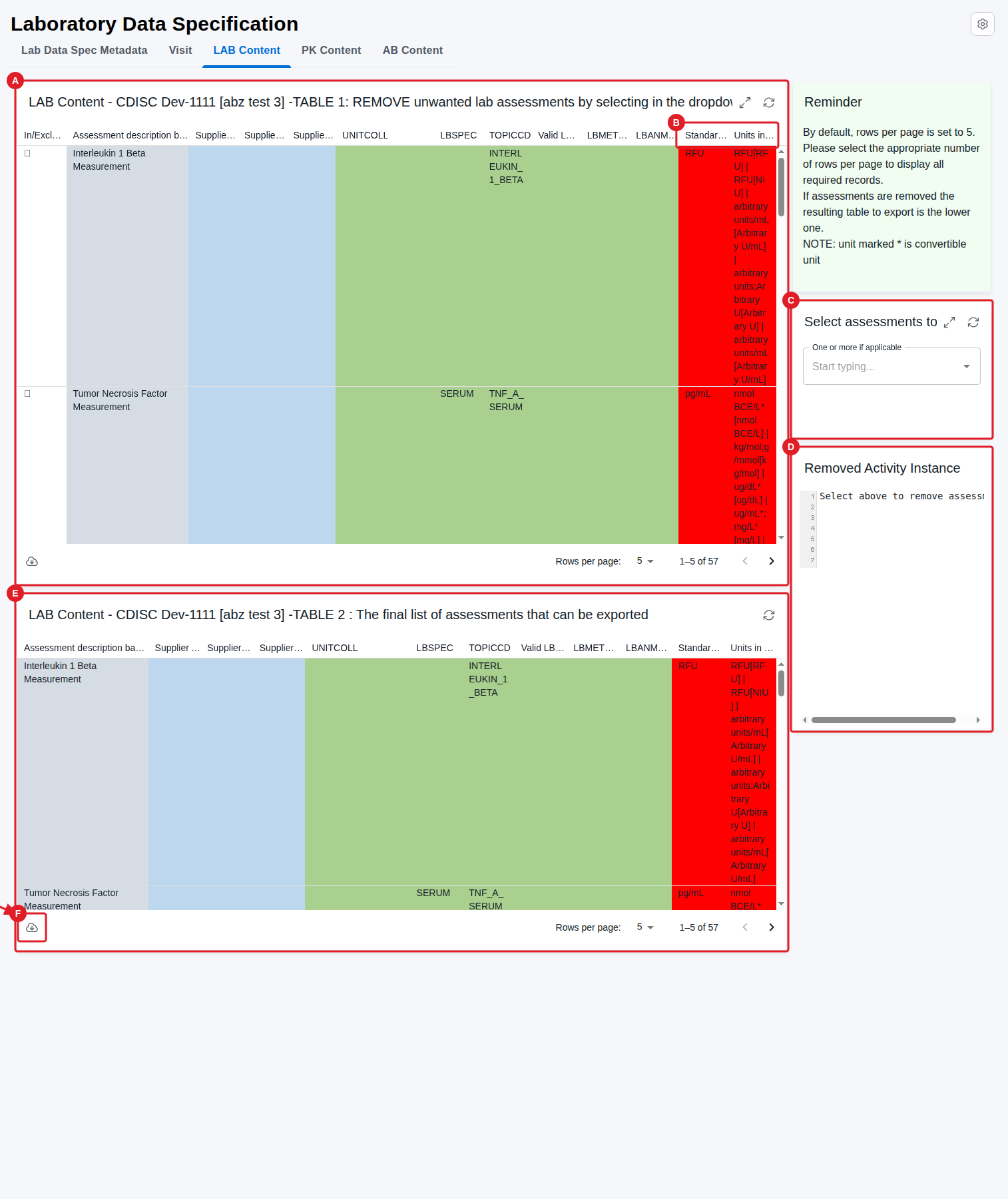
PK Content
Purpose: Refines and exports the study PK (Pharmacokinetic) and PD (Pharmacodynamic) assessment data.
When to use: Use when finalising the PK/PD assessment data set for the supplier template.
Show Quick Guide
- Review the upper table (A) of all study PK/PD assessments.
- Remove unwanted assessments in Select assessments to REMOVE (C); the final data set appears in the lower table (E).
- Export the final data set to
.csv(F).
Design of this page is the same as the LAB Content page. This page contains two tables. Two columns in the upper table — Standard unit and Units in units dimension [CDISC submission value] (B) — are highlighted and are additional to the columns in the Laboratory Data Specification template; they help determine, based on vendor-provided input, whether selected study instances are correct. The Removed Activity Instance card (D) shows which topic codes were removed via (C). 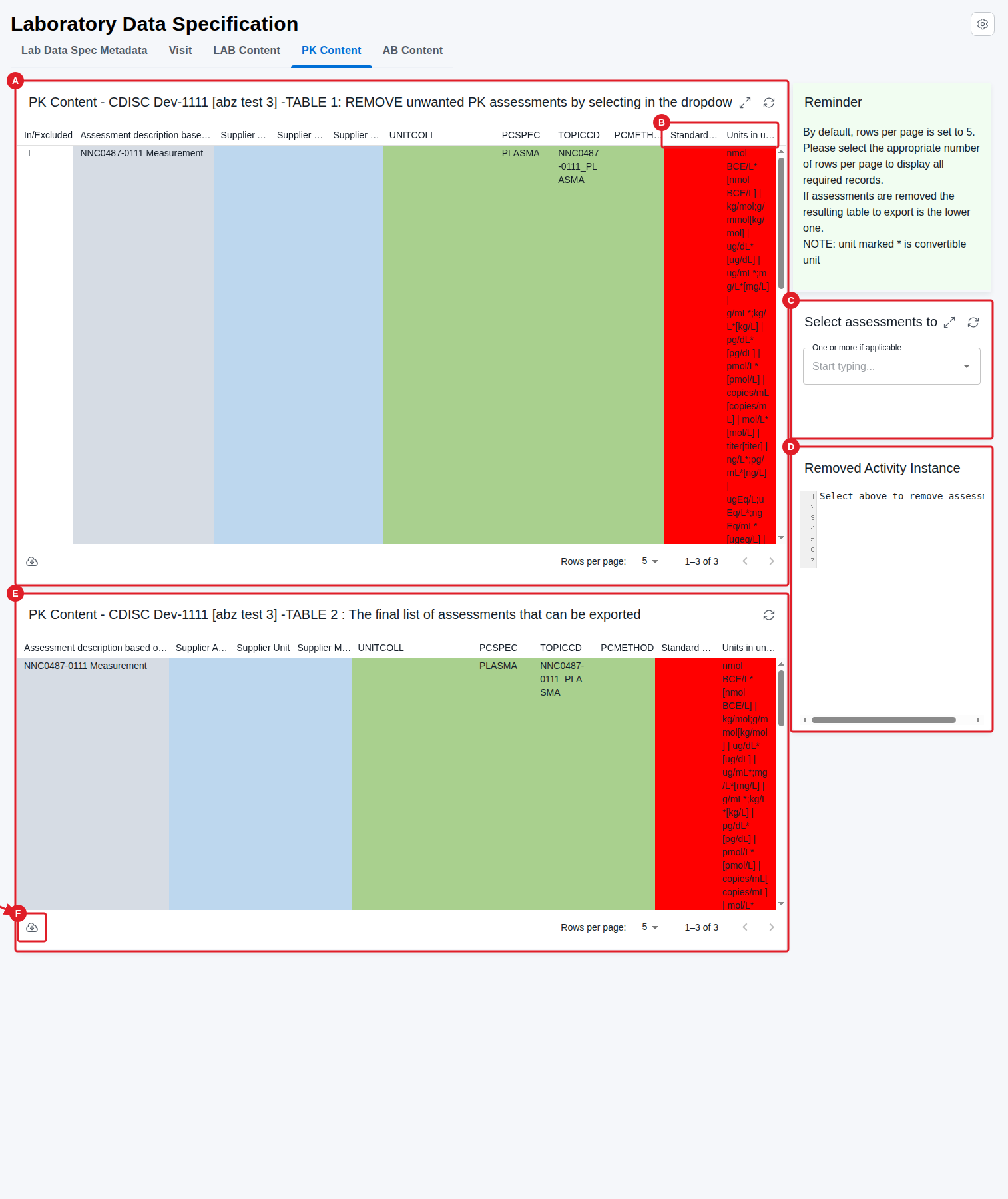
AB Content
Purpose: Refines and exports the study antibody assessment data.
When to use: Use when finalising the antibody assessment data set for the supplier template.
Show Quick Guide
- Review the upper table (A) of all study antibody assessments.
- Remove unwanted assessments in Select assessments to REMOVE (C); the final data set appears in the lower table (E).
- Export the final data set to
.csv(F).
Design of this page is the same as the LAB Content page. This page contains two tables. Two columns in the upper table — Standard unit and Units in units dimension [CDISC submission value] (B) — are highlighted and are additional to the columns in the Laboratory Data Specification template; they help determine, based on vendor-provided input, whether selected study instances are correct. The Removed Activity Instance card (D) shows which topic codes were removed via (C). 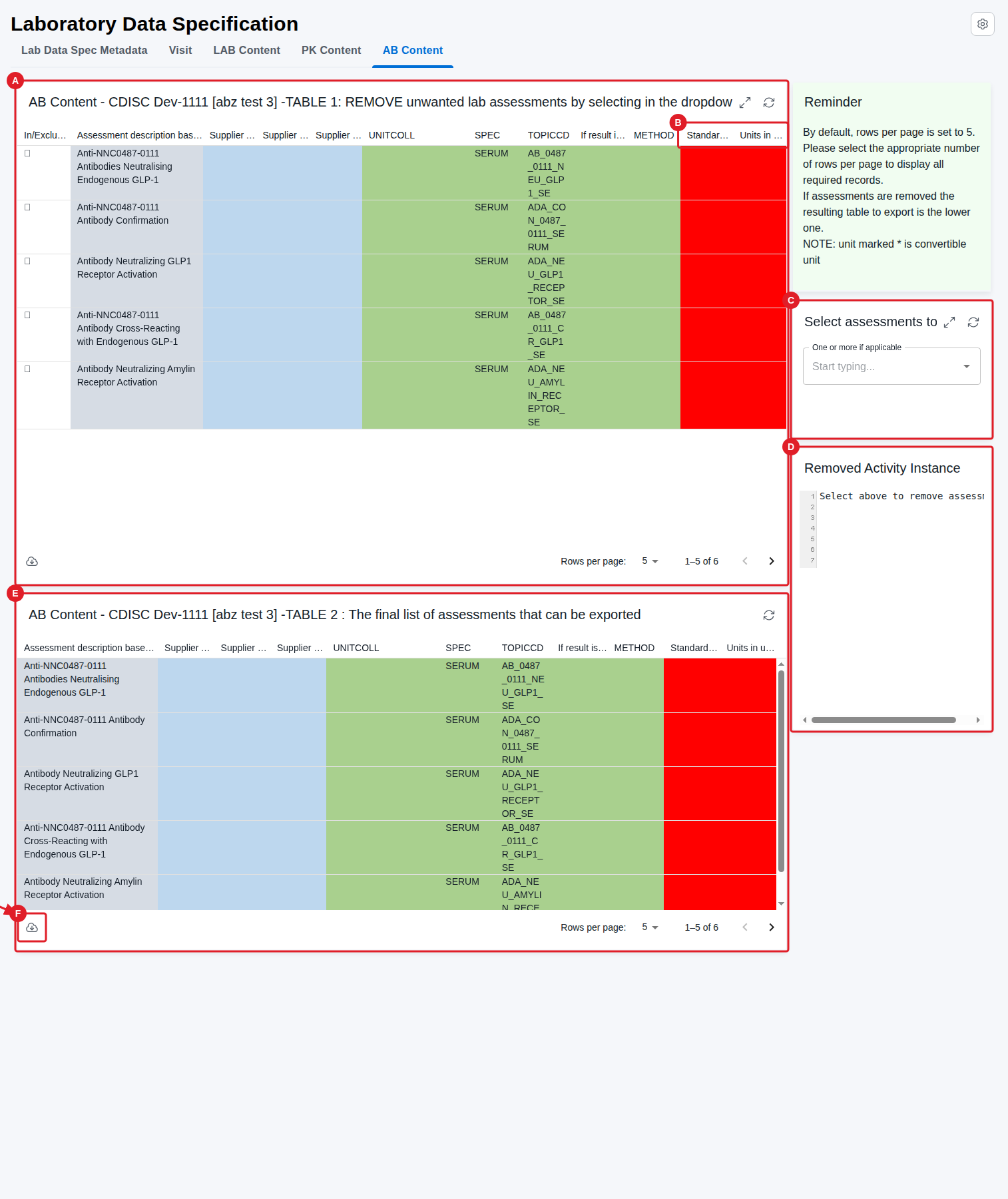
Show Solution Architecture
The structure and column names of the Visit and content tabs are derived from the selected lab specification version. Visits are linked to activity–activity instance pairs for LAB, PK, or AB assessments as defined at the study level on the Data Specification page.
Common errors
| Symptom | Interpretation | Likely cause | Fix |
|---|---|---|---|
| Only 5 visits/rows show in a table | Expected — not a data gap | Rows per page default to 5 in all reports | Change the rows-per-page value to display more |
| Other tabs show wrong structure/columns | A required first step was skipped, not a report fault | No lab specification version selected | Select a version on the Lab Data Spec Metadata tab first |
| Samples collected outside visits are missing | Expected — those visit types are excluded by default | UNSCHEDULED / NON-VISIT not added | Include them via the visit_class selector on the Visit tab |
| An expected assessment/visit is missing from the Visit tab or a LAB/PK/AB Content table | Silent gap — no error is shown, see Prerequisites above | The activity has no Activity Instance selected, or is not scheduled (ticked) at any visit in the SoA | On the Study Activities page, select an Activity Instance for the activity and tick it at the relevant visit(s), then reopen the report |
If this does not resolve the issue, contact your OpenStudyBuilder administrator.